First, Understand What “Without Losing Quality” Really Means
M4A files usually use AAC compression. That means:
- Some audio data is already compressed at the time of recording or export
- That lost data cannot be recovered
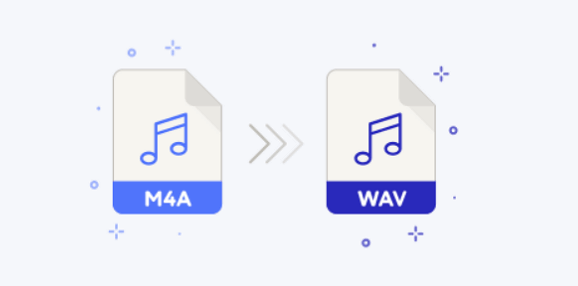
So when people say “convert M4A to WAV without losing quality”, what they actually mean is:
Convert M4A to WAV without additional compression or degradation
That is absolutely possible.
A correct conversion:
- Decodes the AAC audio
- Writes it into an uncompressed WAV container
- Does not re-compress or downsample the audio
If done properly, the WAV file will sound identical to the original M4A.
When Converting M4A to WAV Makes Sense
Even though WAV is larger, it’s often required for:
- Audio editing & mixing
- DAWs (Audacity, Pro Tools, Logic, Premiere)
- Video post-production
- Archiving audio for processing
- Avoiding repeated lossy compression
Once audio is in WAV format, you can edit it freely without compounding quality loss.
The Right Way to Convert M4A to WAV (Conceptually)
To preserve quality, the conversion must meet all of these conditions:
- No re-encoding to another lossy format
- No bitrate change
- No sample rate downscaling
- No normalization or filters
- Direct AAC decode → WAV output
Any tool that does this correctly will preserve quality.
Common Mistakes That Do Cause Quality Loss
Avoid converters that:
- Convert M4A → MP3 → WAV
(This causes double lossy compression) - Force bitrate settings on WAV
- Apply “audio enhancement” automatically
- Downsample from 48kHz to 44.1kHz without telling you
- Normalize audio by default
If a tool asks you to “choose WAV quality,” that’s often a red flag — WAV doesn’t have quality levels.
Using Online Conversion (Safely)
A good online converter:
- Decodes M4A once
- Outputs raw PCM WAV
- Does not apply processing
- Deletes files after conversion
- Requires no sign-up
Cloud-based tools are especially useful when:
- You don’t want to install codecs
- You’re working across devices
- You need quick, consistent output
As long as the tool follows proper decoding → WAV writing, the result is safe.
Verifying That Quality Was Preserved
If you want to be certain:
- Check sample rate (e.g. 44.1kHz or 48kHz)
- Check bit depth (usually 16-bit or 24-bit WAV)
- Listen for artifacts (there shouldn’t be any new ones)
- Compare waveform before editing (it should match)
You won’t hear improvement — but you shouldn’t hear degradation either.
One Important Rule Going Forward
Once converted to WAV:
- Do all editing in WAV
- Export to MP3/AAC only once, at the final stage
Repeated lossy conversions are the fastest way to destroy audio quality.
Final Takeaway
- You cannot restore lost audio data from M4A
- You can convert M4A to WAV without further loss
- The key is proper decoding, not format hopping
- WAV is ideal for editing, processing, and archiving
- Choose tools that are simple, transparent, and non-destructive