
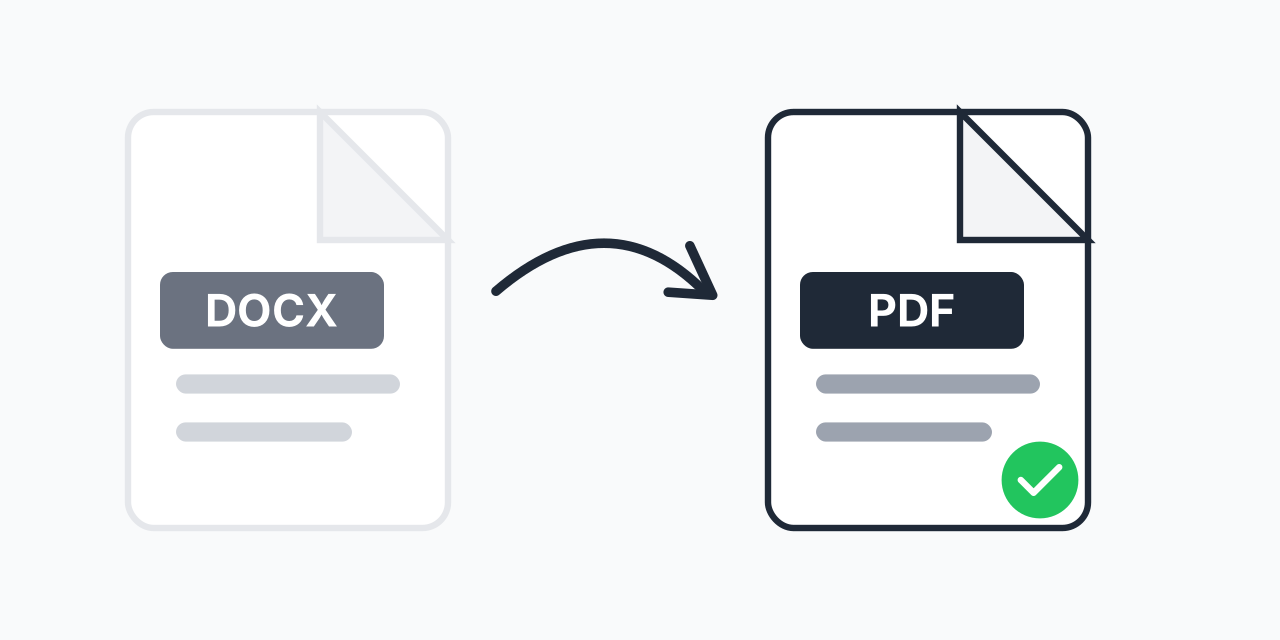
Why Your Word Document Needs to Become a PDF
You have finished writing your document in Microsoft Word, but now you need to share it. The problem? Word documents look different on every computer. Fonts shift, margins change, and carefully designed layouts break apart when opened in different versions of Word or on devices without the right fonts installed.
Converting your DOCX to PDF locks your document exactly as you designed it. PDFs display identically on every device, every operating system, and every screen size. Whether your recipient uses Windows, Mac, iPhone, or Android, they see exactly what you intended.
How to Convert DOCX to PDF
- Upload your DOCX file - Drag and drop your Word document or click to browse. We accept .docx files up to 100MB.
- Confirm PDF output - Your document converts automatically with all formatting preserved, including fonts, images, tables, and hyperlinks.
- Download your PDF - Get your converted file instantly. No watermarks, no signup required, no hidden fees.
The entire process takes seconds. Your original DOCX file remains unchanged, so you can continue editing it while sharing the PDF version.
What Gets Preserved in the Conversion
Our converter maintains every element of your Word document with precision. In testing, we consistently preserve:
- Fonts and typography - Even custom fonts embed correctly in the PDF, ensuring your headings and body text appear exactly as designed
- Images and graphics - Photos, charts, diagrams, and SmartArt convert at full resolution without compression artifacts
- Tables and layouts - Complex multi-column layouts, tables with merged cells, and text boxes maintain their precise positioning
- Hyperlinks - Both internal document links and external URLs remain clickable in the converted PDF
- Headers and footers - Page numbers, dates, and custom headers transfer correctly to every page
- Comments and annotations - Review comments from Word appear in the PDF for reference
When You Should Convert DOCX to PDF
Sharing Final Documents
When you email a contract, proposal, or report, you want recipients to see your professional formatting. PDFs prevent accidental edits and ensure your document looks polished on any device. This is especially critical for legal documents, resumes, and business proposals where presentation matters.
Printing Without Surprises
Word documents can reflow text when printed on different printers. PDFs print exactly as they appear on screen, page for page. If you have designed a specific layout with images placed precisely, PDF guarantees that layout survives the trip to paper.
Archiving Important Records
PDF is an ISO-standardized format (ISO 32000) designed for long-term document preservation. Converting important Word documents to PDF ensures they remain readable decades from now, regardless of what software exists in the future.
Submitting to Portals and Websites
Many job application portals, government websites, and academic submission systems specifically require PDF format. Converting your Word resume or application to PDF before uploading prevents formatting disasters.
DOCX vs PDF: Understanding the Difference
Both formats serve different purposes. Understanding when to use each helps you make the right choice:
- Choose DOCX when: You need to make future edits, collaborate with others who will add changes, or work with content that is still in progress. DOCX is your working format.
- Choose PDF when: You are sharing a final version, need guaranteed consistent display, require the document to be tamper-resistant, or are archiving for long-term storage.
Best practice: Keep your original DOCX file for future edits. Convert to PDF only when ready to distribute or archive. You can always generate a new PDF from an updated Word document.
Common Conversion Problems We Solve
Users often encounter issues when converting Word to PDF using other methods. Our converter addresses these directly:
- Missing fonts - We embed fonts in the PDF so your typography displays correctly even on devices without your fonts installed
- Broken hyperlinks - Unlike print-to-PDF methods, our converter preserves all clickable links
- Image quality loss - Graphics maintain their original resolution without compression artifacts
- Layout shifts - Tables, columns, and positioned elements stay exactly where you placed them
- Missing content - Some converters drop text near page breaks. We preserve every word of your document
Batch Convert Multiple Word Documents
Need to convert an entire folder of Word documents? Our batch conversion feature lets you upload multiple DOCX files simultaneously. Each document converts independently, preserving its unique formatting. Download all converted PDFs at once in a convenient ZIP file. This saves hours when processing large document sets for archiving or distribution.
Works on Any Device
No software to install, no plugins to update, no compatibility issues to troubleshoot. Convert Word documents to PDF from:
- Windows 10, Windows 11, or any Windows version
- Mac running macOS Monterey, Ventura, Sonoma, or earlier
- Linux distributions including Ubuntu, Fedora, and Debian
- Chrome, Firefox, Safari, Edge, and Opera browsers
- iPhone, iPad, and Android phones and tablets
- Chromebooks and other Chrome OS devices
If you have a web browser, you can convert DOCX to PDF. No Microsoft Office installation required.
Your Documents Stay Private
We take document security seriously. Your uploaded files are processed on secure servers using encrypted connections. For sensitive business documents, legal contracts, or personal files, you can convert with confidence.
Related Document Conversions
Working with other document formats? Explore our complete PDF converter tools for additional options. Need to go the other direction? Our PDF to DOCX converter extracts editable Word documents from PDFs. For older Word formats, try our DOC to PDF converter.