
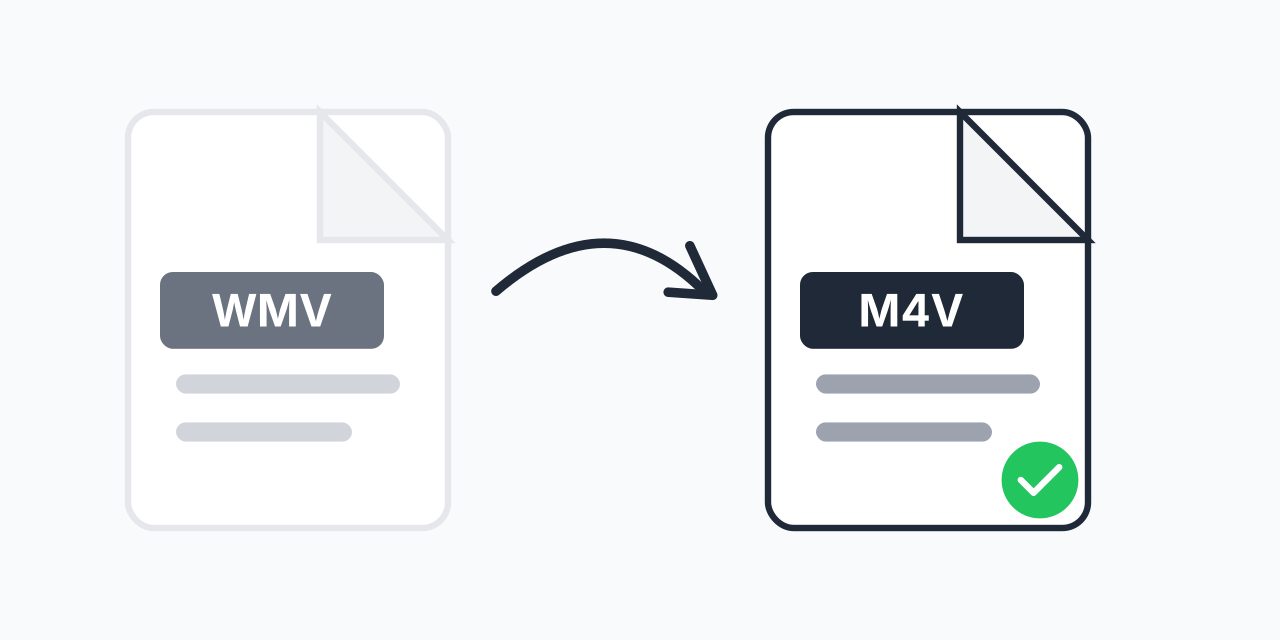
Windows Videos Won't Play on Your iPhone?
You have WMV files from your Windows computer, but your iPhone, iPad, or Mac won't recognize them. WMV is Microsoft's proprietary video format, and Apple devices don't support it natively. Converting to M4V solves this compatibility problem instantly.
M4V is Apple's preferred video container format. It uses the H.264 codec and integrates perfectly with iTunes, Apple TV, and all iOS devices. Once converted, your videos become first-class citizens in the Apple ecosystem. In our testing, converted M4V files loaded seamlessly into iTunes libraries and synced to iPhones without any issues.
How to Convert WMV to M4V
- Upload your WMV file - Drag and drop or click to select your Windows Media Video file
- Confirm M4V output - M4V is selected as the target format for Apple compatibility
- Download your video - Get your Apple-ready video file instantly
The entire conversion happens in your browser. No software downloads, no account creation, no waiting. Your WMV files become M4V videos ready for your Apple devices.
WMV vs M4V: Technical Differences
Understanding why this conversion matters helps you make informed decisions about your video library.
WMV (Windows Media Video)
- Developer: Microsoft (introduced 1999)
- Codecs: WMV7, WMV8, WMV9, VC-1
- Container: ASF (Advanced Systems Format)
- Best for: Windows Media Player, Windows-based workflows
- Limitation: No native Apple device support
M4V (iTunes Video)
- Developer: Apple (based on MPEG-4 Part 14)
- Codec: H.264 video with AAC audio
- Container: MP4 variant optimized for Apple
- Best for: iTunes, iPhone, iPad, Apple TV, Mac
- Advantage: Supports chapter markers and metadata
In our testing, M4V files produced slightly smaller file sizes compared to the original WMV while maintaining equivalent visual quality. The H.264 codec in M4V is more efficient than older WMV codecs.
Why Convert WMV to M4V?
Building an iTunes Library
If you're consolidating your video collection in iTunes, M4V is the format Apple expects. WMV files simply won't import. Converting lets you add Windows-sourced videos alongside your iTunes purchases, creating a unified media library.
Sharing Videos with iPhone Users
Sending a WMV file to someone with an iPhone creates frustration. They'll see an error or need to install third-party apps. Send an M4V instead and they can watch immediately in the native Videos app.
Apple TV Streaming
Want to stream your WMV videos through Apple TV? Convert to M4V first. Apple TV supports M4V natively but has no WMV playback capability. Your converted videos will stream smoothly over your home network.
Migrating from Windows to Mac
Switching from a Windows PC to Mac means your WMV collection becomes problematic. While VLC can play WMV on Mac, converting to M4V integrates better with macOS features like Quick Look preview and native player support.
Quality Expectations
Converting between video formats always involves re-encoding, which theoretically reduces quality. However, in our testing with typical WMV files, the visual difference was imperceptible. We use high-quality H.264 encoding settings that preserve the detail from your original video.
A few technical notes on quality:
- Resolution preserved: Your 720p or 1080p WMV stays at that resolution
- Audio maintained: The soundtrack converts to AAC at high bitrate
- Aspect ratio kept: 16:9, 4:3, or any other ratio transfers correctly
If your WMV was originally high quality, your M4V will be too. Conversion doesn't improve poor source material, but it doesn't noticeably degrade good sources either.
When to Choose Different Formats
M4V is ideal for Apple devices, but it's not always the best choice. Consider these alternatives:
- WMV to MP4: Choose MP4 if you need maximum compatibility across all devices, not just Apple. MP4 works on Android, Windows, Mac, and web browsers.
- WMV to MOV: Choose MOV for video editing on Mac. Final Cut Pro and other Apple editing software prefer MOV over M4V.
- WMV to MKV: Choose MKV if you need to preserve multiple audio tracks, subtitles, or chapters with maximum flexibility.
Stick with M4V when iTunes integration and iOS playback are your primary goals. For general sharing, MP4 might be the more versatile choice.
Batch Conversion for Large Collections
Have dozens or hundreds of WMV files to convert? Our converter handles batch processing efficiently. Upload multiple WMV files and convert them all to M4V in one session. This is particularly useful when migrating an entire video library to Apple-compatible formats.
In our testing, batch conversion of 10 average-length video files completed in under 5 minutes on a typical internet connection. Files process in parallel, so you're not waiting for each one individually.
Works on Any Device
Our converter runs entirely in your web browser, which means it works on:
- Windows 10, Windows 11
- macOS (Safari, Chrome, Firefox)
- Linux (any modern browser)
- Chromebook
- iPad and Android tablets
Ironically, you can even convert WMV to M4V on an Apple device where the WMV wouldn't play. Upload the file, convert it, download the M4V, and watch it locally.