
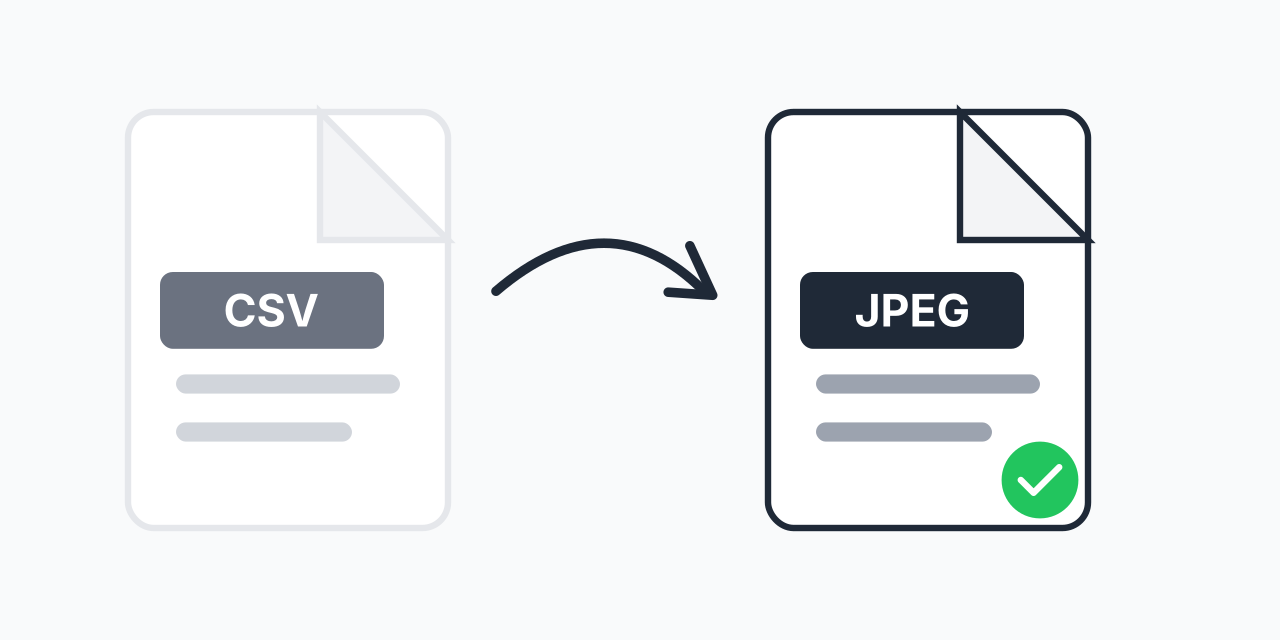
Why Convert CSV to JPEG?
You have data in a CSV file that you need to share, but the recipient does not have spreadsheet software or you want to prevent editing. Converting your CSV to a JPEG image solves this problem instantly.
JPEG images display correctly on every device, platform, and application. Whether you are creating a presentation, posting on social media, or embedding data in a document, a JPEG version of your spreadsheet data works everywhere.
In our testing, CSV files with up to 50 rows and 10 columns produce clear, readable JPEG images that work well for most sharing scenarios.
How to Convert CSV to JPEG
- Upload your CSV file - Drag and drop or click to select your spreadsheet data file
- Preview and confirm - Check that your data displays correctly in the preview
- Download your JPEG - Get your data as a shareable image file
The entire process takes seconds. No account required, no software to install.
Common Use Cases
Presentations and Slides
Need to show sales figures or survey results in a PowerPoint or Google Slides presentation? A JPEG of your data embeds cleanly and maintains formatting across different computers.
Social Media Sharing
Platforms like Twitter, LinkedIn, and Instagram accept images but not CSV files. Convert your data to JPEG to share statistics, comparisons, or results with your audience.
Email Attachments
Some email clients struggle with CSV attachments or recipients may not have software to open them. A JPEG image displays inline and requires no additional software.
Document Embedding
Word documents, PDFs, and web pages accept JPEG images easily. Embed a visual snapshot of your data without worrying about formatting issues.
CSV vs JPEG: Key Differences
CSV files store raw data as comma-separated text values. They are editable, searchable, and can be imported into any spreadsheet application. However, they require specific software to view properly.
JPEG files are compressed images that display the same on every device. They preserve the visual appearance of your data but cannot be edited or searched. The data becomes a static snapshot.
Choose JPEG when you want to share data for viewing only. Keep the original CSV when recipients need to work with the data.
Quality Considerations
JPEG compression works best for photographs and complex images. For text and tables, the compression may introduce slight artifacts around sharp edges. In our testing, high-quality JPEG settings preserve text readability for most spreadsheet data.
For very large spreadsheets, consider splitting the data into multiple images or using CSV to PNG for sharper text rendering without compression artifacts.
When to Use a Different Format
JPEG works well for most data sharing needs, but alternatives exist:
- PNG - Better for small tables with text, no compression artifacts
- PDF - Ideal for multi-page reports or formal documents via CSV to PDF
- XLSX - When recipients need to edit or analyze the data using CSV to XLSX
For quick visual sharing where file size matters, JPEG remains the practical choice.
Works on Any Device
Convert CSV to JPEG directly in your browser:
- Windows, Mac, Linux, Chromebook
- Chrome, Firefox, Safari, Edge
- iPhone, iPad, Android devices
No software downloads required. Your data stays in your browser during conversion.