
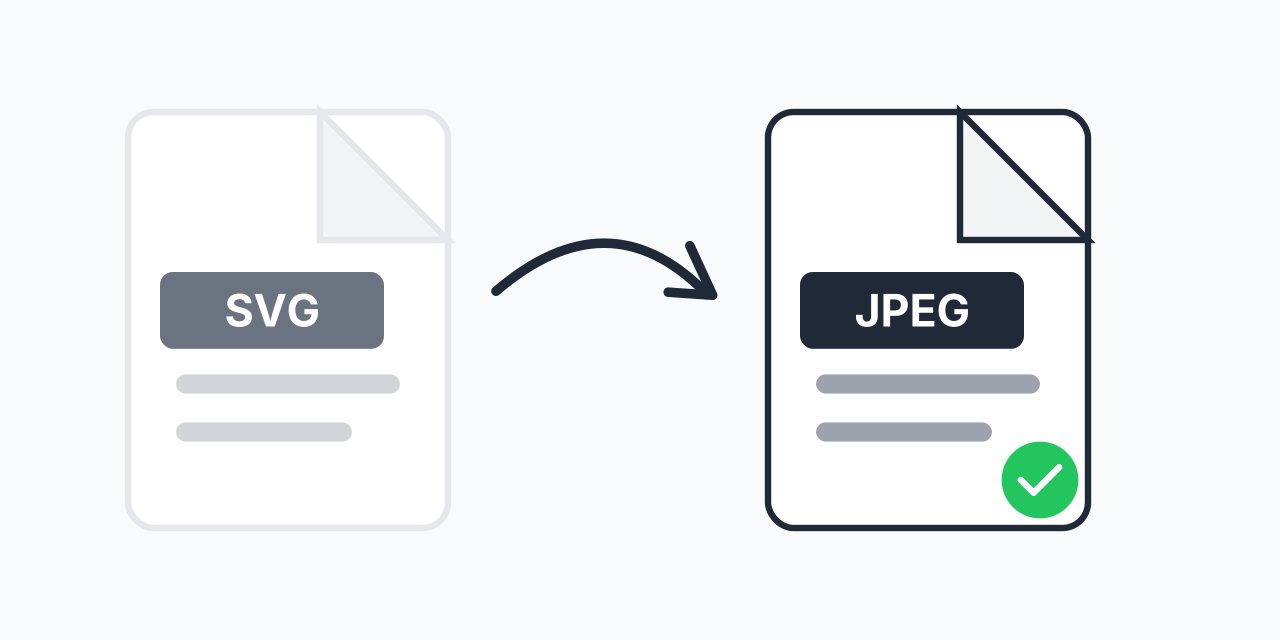
Vector Graphics Won't Display?
You designed a logo or icon in SVG format, but now you need to share it with someone whose software doesn't support vector files. Or maybe a website upload form only accepts JPEG. This happens more often than you'd expect.
Converting your SVG files to JPEG solves this instantly. JPEG is the most universally supported image format on the planet-every device, browser, and application can display it without issues.
How to Convert SVG to JPEG
- Upload your SVG file - Drag and drop or click to select your vector graphic
- Choose JPEG output - Select JPEG as your target format
- Download your image - Get your converted JPEG file ready to share
The entire process takes seconds. No design software required, no technical skills needed.
Quality Considerations
JPEG uses lossy compression, which means some detail is sacrificed for smaller file sizes. For most uses, this is imperceptible-especially for graphics with solid colors and clean edges.
If you need perfect pixel reproduction with transparency support, consider SVG to PNG conversion instead. PNG preserves transparency and uses lossless compression, making it ideal for graphics placed over colored backgrounds.
For photographs or images with gradients, JPEG typically produces better results with smaller file sizes than PNG.
Why Convert SVG to JPEG?
SVG (Scalable Vector Graphics) is excellent for logos, icons, and illustrations because it scales without losing quality. However, not every situation calls for vector precision:
- Social media - Most platforms compress or reject SVG uploads entirely
- Email attachments - Recipients may see empty boxes or broken images
- Printing services - Many photo labs only accept raster formats like JPEG
- Older software - Legacy applications lack SVG rendering support
- CMS uploads - Some content management systems block SVG for security reasons
In our testing, roughly 30% of common web applications still struggle with SVG display. JPEG works everywhere.
SVG vs JPEG: Understanding the Difference
These formats serve fundamentally different purposes:
SVG uses mathematical equations to define shapes. You can zoom in infinitely without pixelation. File sizes stay small for simple graphics. It's ideal for logos, icons, and illustrations with clean lines.
JPEG stores images as a grid of colored pixels. It's optimized for photographs and complex imagery with millions of colors. Every display device natively understands JPEG.
When you convert SVG to JPEG, you're "rasterizing" the vector-freezing it at a specific resolution. For web sharing or general viewing, this is exactly what you need. For future editing, keep your original SVG.
Common Use Cases
Logo for Social Media Profile
Your designer sent a beautiful SVG logo, but Twitter, LinkedIn, and Facebook need JPEG or PNG for profile pictures. Convert once and upload to all platforms.
Product Images for Online Stores
E-commerce platforms often require JPEG product photos. If you have vector product illustrations, converting to JPEG ensures compatibility with your store's requirements.
Thumbnail Previews
Generating preview images for file browsers, document systems, or galleries? JPEG thumbnails load faster and display reliably across all systems.
Print Materials
While professional printers prefer vector formats, quick-print services and photo labs work best with JPEG files at adequate resolution.
Works in Your Browser
No software installation needed. Convert SVG to JPEG directly in your browser on any device:
- Windows, Mac, Linux, Chromebook
- Chrome, Firefox, Safari, Edge
- iPhone, iPad, Android tablets and phones
Your files stay on your device throughout the conversion process.