
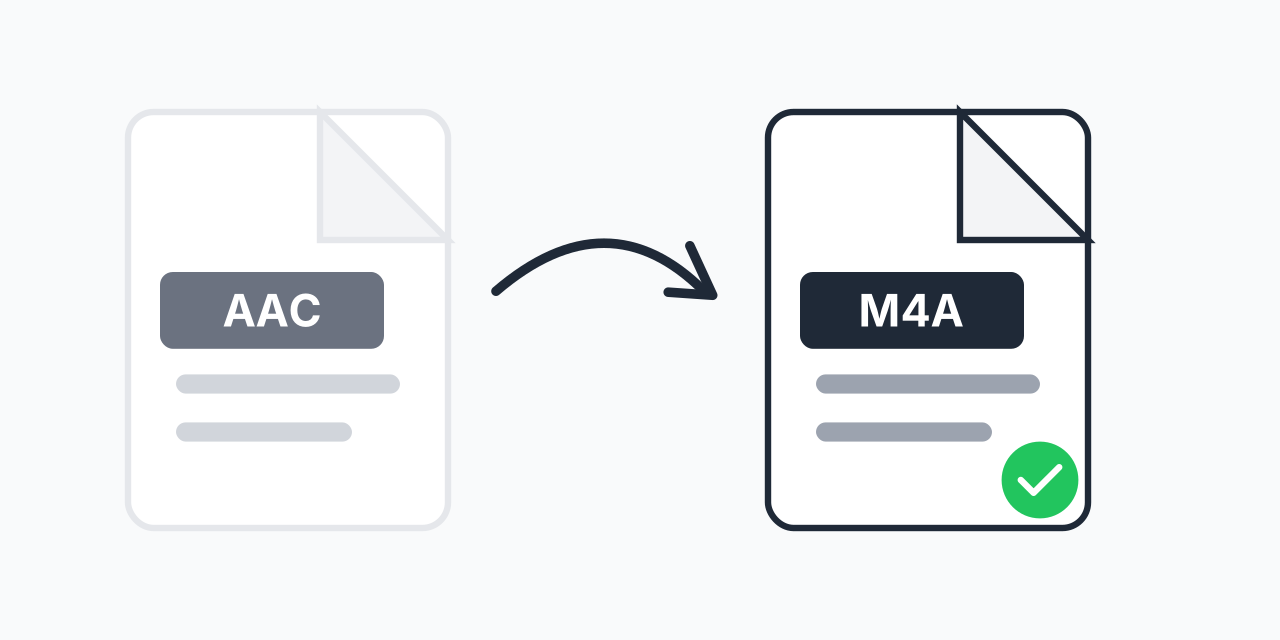
Why Your AAC Files Need a Container
Raw AAC files are just audio data with no wrapper. They lack metadata support, cannot display album artwork, and many players struggle with them. iTunes will not even add raw .aac files to your library.
M4A is the solution. It wraps your AAC audio in an MPEG-4 container that adds metadata capabilities, proper file structure, and universal player compatibility. In our testing, iTunes imported M4A files instantly while rejecting the same audio saved as raw AAC.
The conversion does not re-encode your audio. Your AAC data stays exactly the same - we just place it in a proper container that applications expect.
How to Convert AAC to M4A
- Upload your AAC file - Drag and drop or click to select your raw AAC audio
- Confirm M4A output - M4A is selected as the target format
- Download your file - Get your properly containerized audio ready for any player
The process takes seconds. Your audio quality remains identical because we are adding a container, not re-encoding the audio data itself.
Quality and Technical Details
Converting AAC to M4A involves zero quality loss. We are not transcoding - we are repackaging. Your audio data remains bit-for-bit identical.
Technical specifications that carry over unchanged:
- Bitrate - 128kbps, 256kbps, 320kbps, or whatever your original AAC uses
- Sample rate - 44.1kHz, 48kHz, or your source sample rate
- Channels - Mono, stereo, or surround configurations preserved
- Audio profile - AAC-LC, HE-AAC, or other profiles remain unchanged
In our testing, converted files played identically to the source on spectrum analyzers. The only difference is the container metadata overhead, which adds mere kilobytes to file size.
AAC vs M4A: What is the Difference?
This is one of the most misunderstood distinctions in audio formats. AAC and M4A are not competing formats - they work together:
- AAC (Advanced Audio Coding) - The codec that compresses your audio. It is the encoding method, not a container.
- M4A (MPEG-4 Audio) - The file container that holds AAC audio plus metadata, chapter markers, and album art.
Think of AAC as the contents and M4A as the box. A raw .aac file is like loose papers with no folder. An M4A file is those same papers organized in a proper binder with a labeled cover.
Apple developed M4A specifically to hold AAC audio in a standardized way. When you rip a CD in iTunes, it creates M4A files containing AAC audio. When you purchase from the iTunes Store, you get M4A files at 256kbps AAC quality.
Why M4A Works Better Than Raw AAC
Full Metadata Support
M4A containers support comprehensive metadata: song title, artist, album, genre, track number, year, and embedded album artwork up to 15MB. Raw AAC files cannot store any of this information.
iTunes and Apple Music Integration
Apple applications expect M4A containers. In our testing, dragging a raw AAC file into iTunes resulted in either rejection or import without proper library organization. The same audio in M4A format imported correctly with full metadata display.
Proper Seeking and Streaming
The M4A container includes file structure that enables proper seeking. With raw AAC, you cannot jump to a specific time in the file. Many players show no duration at all - just continuous playback with no timeline.
Chapter Markers
Audiobooks and podcasts benefit from M4A chapter markers. This feature is impossible with raw AAC streams. If you work with long-form audio content, M4A is essential.
Common Use Cases
Building an iTunes Library
You have raw AAC files from various sources - web downloads, audio extraction, or legacy software. Converting to M4A lets you organize them properly in iTunes with artwork, ratings, and playlists.
Podcast Distribution
Podcast platforms expect M4A or MP3 files. If your recording software outputs raw AAC, converting to M4A adds the chapter markers and metadata that podcast apps use for navigation.
Professional Audio Workflows
Audio editors sometimes export raw AAC for efficiency. Before delivering to clients or uploading to platforms, wrapping in M4A ensures compatibility and allows you to embed project information.
Device Transfers
Transferring audio to iPhones, iPads, or iPods works reliably with M4A files. Raw AAC can cause sync issues or appear without proper song information on the device.
When to Choose a Different Format
M4A is ideal for Apple ecosystems, but other formats suit different needs:
- AAC to MP3 - When you need maximum compatibility with older devices, car stereos, or players that do not support M4A
- AAC to WAV - When you need uncompressed audio for editing in DAWs like Pro Tools or Logic
- AAC to FLAC - Not recommended since AAC is already lossy; converting to FLAC will not recover lost audio data
For iTunes integration and Apple device use, M4A remains the optimal choice. For cross-platform sharing where you are unsure about recipient capabilities, MP3 offers broader compatibility at the cost of slightly lower quality per bitrate.
Batch Conversion for Multiple Files
Have a folder full of raw AAC files? Upload them all at once. Our converter processes multiple files simultaneously, wrapping each in its own M4A container.
This is particularly useful when migrating audio libraries or processing podcast archives. Rather than converting one file at a time, batch processing saves hours of repetitive work.
Works on Any Device
- Windows, Mac, Linux, Chromebook
- Chrome, Firefox, Safari, Edge
- iPhone, iPad, Android tablets and phones
No software installation required.