
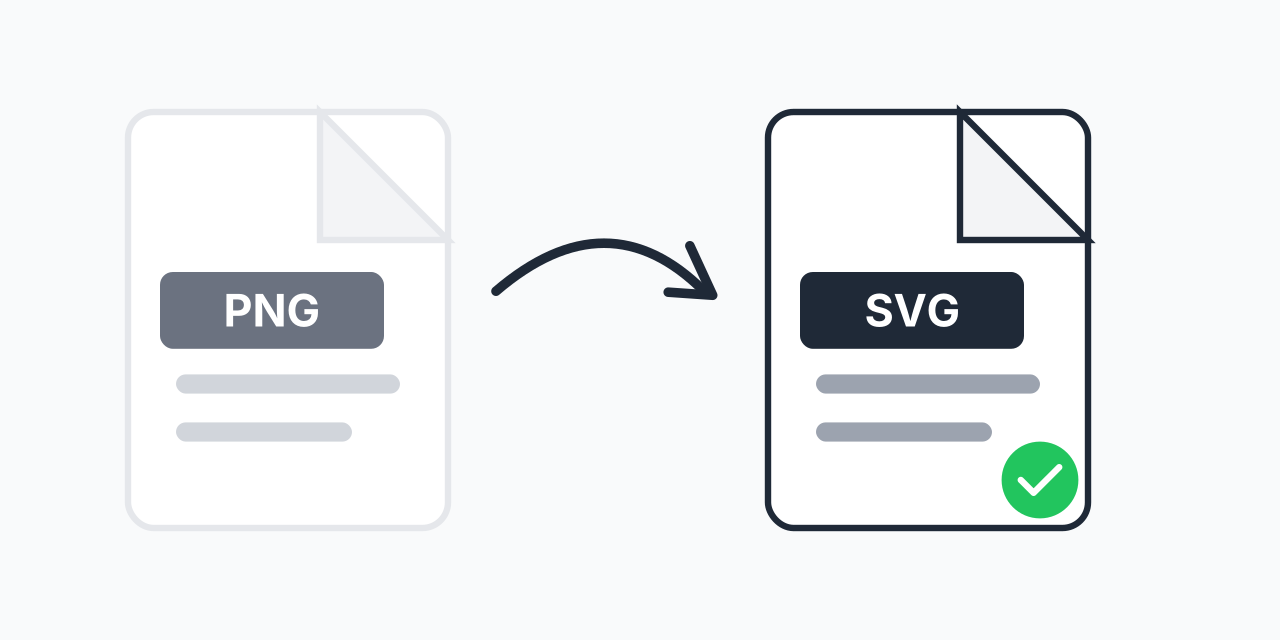
Why Convert PNG to SVG?
Your PNG looks great at its current size, but zoom in or enlarge it and you see pixels. That's because PNG files store images as a grid of colored dots-they're raster images. SVG files store images as mathematical shapes and paths-they're vectors.
This difference matters when you need to resize a logo for different uses, cut graphics on a vinyl cutter, or edit individual shapes in design software. In our testing, a logo converted from PNG to SVG could scale from business card to billboard size without any degradation, while the original PNG became unusable beyond 3x its original dimensions.
How to Convert PNG to SVG
- Upload your PNG file - Drag and drop or click to select your image
- Wait for tracing to complete - Our converter analyzes and traces your image into vector paths
- Download your SVG - Get an editable, scalable vector file ready for any use
The conversion happens in your browser. No software installation, no account creation, no waiting in queues.
Understanding Raster to Vector Conversion
Converting PNG to SVG isn't like converting between video formats where you're just repackaging the same data. It's a fundamentally different process called "tracing" or "vectorization."
The converter analyzes your PNG image, detects edges between different colors, and recreates those shapes as vector paths using lines, curves, and anchor points. The result is an SVG that represents your image mathematically rather than pixel-by-pixel.
What This Means for Your Image
- Simple graphics convert best - Logos, icons, line art, and illustrations with solid colors produce excellent SVG results
- Complex photos don't convert well - A photograph of a landscape will produce an SVG with thousands of paths that's larger than the PNG and doesn't look as good
- The output is editable - Each shape in your SVG can be individually selected and modified in software like Illustrator, Inkscape, or Figma
- File size varies - Simple images produce tiny SVGs; complex images produce large ones
Best Use Cases for PNG to SVG
Logo Preparation
You have a PNG logo but need it in vector format for a print shop, sign maker, or brand guidelines. Converting to SVG gives you infinite scalability and the ability to change colors or proportions.
Cutting Machines and Plotters
Cricut, Silhouette, and other cutting machines require vector files. Convert your PNG designs to SVG to send them to your cutter. In our testing, clean PNG graphics with distinct edges converted into perfectly cuttable SVG paths.
Web Graphics That Scale
SVG files on websites scale perfectly on retina displays and different screen sizes. If you have PNG icons or illustrations, converting to SVG means sharper graphics at smaller file sizes-especially for simple designs.
Design Software Editing
Need to modify individual elements in a graphic? SVG files let you select and edit each path separately in Adobe Illustrator, Inkscape, Figma, or Sketch. A PNG only gives you pixels to work with.
What Converts Well (And What Doesn't)
Ideal for Conversion
- Logos and brand marks with solid colors
- Icons and simple illustrations
- Line art and sketches
- Text and typography (if you don't have the font file)
- Geometric patterns and shapes
- Clipart and cartoon-style graphics
Poor Candidates for Conversion
- Photographs - gradients and millions of colors create bloated, unusable SVGs
- Images with complex shadows or lighting effects
- Textured or grainy graphics
- Low-resolution or heavily compressed PNGs
If you need to convert a photograph for web use, you're better off keeping it as PNG or converting to PNG to JPG for smaller file sizes. SVG is designed for graphics, not photos.
PNG vs SVG: Technical Comparison
| Feature | PNG (Raster) | SVG (Vector) |
|---|---|---|
| Scaling | Quality degrades when enlarged | Infinite scaling, always sharp |
| Editing | Pixel-based, limited editing | Individual paths fully editable |
| File Size | Based on dimensions and colors | Based on complexity of paths |
| Transparency | Full alpha channel support | Full transparency support |
| Browser Support | Universal | Universal (all modern browsers) |
| Best For | Photos, complex graphics | Logos, icons, illustrations |
| Animation | Not supported | Supports CSS and JS animation |
| Searchable Text | No | Yes, if text is preserved as text |
Tips for Better Conversion Results
The quality of your output SVG depends heavily on your input PNG. Here's how to get the best results:
- Use the highest resolution available - More pixels means more detail for the tracer to work with. A 1000x1000 PNG will trace better than a 100x100 version of the same image.
- Start with clean edges - Anti-aliased edges are fine, but blurry or noisy edges confuse the tracer.
- Fewer colors work better - Images with 2-10 distinct colors convert cleanly. Images with gradients or thousands of colors create complex, hard-to-edit SVGs.
- Solid backgrounds are ideal - Transparent PNG backgrounds work well. Busy or textured backgrounds will be traced as shapes you'll need to delete.
- Use PNG, not JPEG - JPEG compression creates artifacts that the tracer interprets as shapes. Always use lossless PNG for the cleanest conversion.
After Conversion: Working with Your SVG
Once you've converted your PNG to SVG, you can:
- Open in design software - Illustrator, Inkscape (free), Figma, Sketch, and Affinity Designer all handle SVG files natively
- Use on websites - SVG files can be embedded directly in HTML or used as image sources. They're supported in all modern browsers.
- Send to print or cutting services - Most professional services prefer or require vector formats
- Convert to other vector formats - Need EPS or PDF? Open your SVG in a vector editor and export to the format you need.
If you later need a raster version of your SVG, you can convert it back to PNG at any resolution using our SVG to PNG converter.
Alternatives to Consider
PNG to SVG is the right choice for converting raster graphics to editable vectors. But depending on your goal, consider:
- SVG converter - If you already have an SVG and need other formats
- PNG to JPG - If you just need a smaller file for web use, not a vector
- EPS to SVG - If you have an EPS vector file and need SVG format specifically
For batch converting multiple PNG files, upload them all at once-no need to convert one at a time.
Works on Any Device
Convert PNG to SVG right in your browser:
- Windows, Mac, Linux, Chromebook
- Chrome, Firefox, Safari, Edge
- iPhone, iPad, Android tablets and phones
No downloads, no plugins, no software to install. Your files are processed locally in your browser for privacy and speed.