
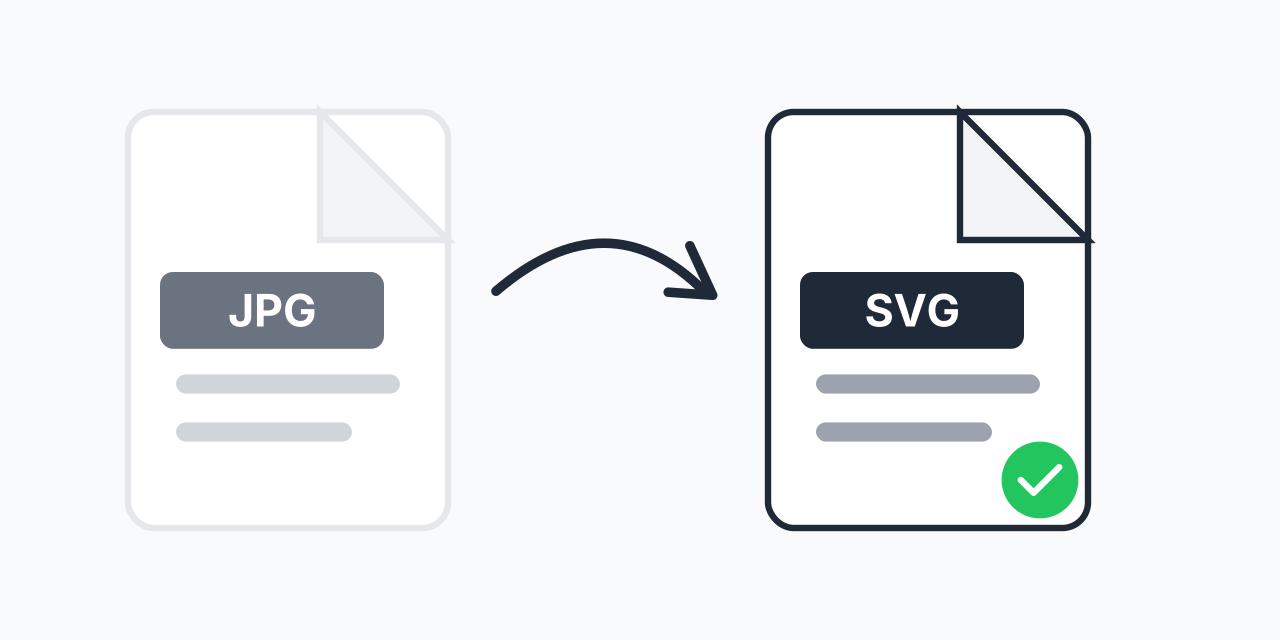
Why Convert JPG to SVG?
JPG files are made of pixels. Zoom in far enough and you see squares. SVG files are made of mathematical paths and curves-they stay sharp at any size, from thumbnail to billboard.
This matters when you need to resize graphics, cut vinyl with a Cricut or Silhouette, or use logos across different media. In our testing, converting JPG images to SVG produced vectors that scaled cleanly from 16px icons to large format prints without quality loss.
The conversion process is called vectorization or tracing. Our converter analyzes your JPG, detects edges and shapes, fits curves to them, and outputs a true vector file you can edit in any design software.
How to Convert JPG to SVG
- Upload your JPG file - Drag and drop or click to select your image
- Let the converter trace your image - The vectorization engine analyzes shapes and colors
- Download your SVG - Get a scalable vector file ready for any use
The entire process takes seconds. No software to install, no account required. Your browser handles the conversion directly.
JPG vs SVG: Understanding the Difference
These formats work fundamentally differently:
- JPG (Raster) - Stores images as a grid of colored pixels. Great for photographs. Loses quality when enlarged. File size depends on image dimensions.
- SVG (Vector) - Stores images as mathematical shapes and paths. Perfect for graphics, logos, illustrations. Scales infinitely without quality loss. File size depends on complexity, not dimensions.
In our testing, a simple logo converted from a 500KB JPG became a 12KB SVG that looked identical at small sizes but remained perfectly crisp when blown up to poster size-where the JPG would have turned into a blocky mess.
Cricut and Silhouette Users
Cutting machines need vector files to function properly. Your Cricut or Silhouette blade follows paths-it needs directional data that raster images simply don't provide.
While Cricut Design Space accepts JPG uploads and has built-in tracing, pre-converting to SVG gives you more control. You can clean up the vector in design software before cutting, adjust paths, remove unwanted elements, and ensure cleaner cuts.
For best results when converting photos for cutting: choose images with clear subjects and simple backgrounds. Complex photographs with many details produce complicated SVGs that are harder to cut cleanly.
Best Use Cases for JPG to SVG
Logo Conversion
Have a logo as a JPG but need it for professional printing or signage? Convert it to SVG once and use it at any size forever. No more hunting for higher resolution versions.
Craft Projects
Creating vinyl decals, t-shirt designs, or paper crafts? SVG files work directly with Cricut, Silhouette, and other cutting machines. Your designs cut precisely along the vector paths.
Web Icons and Graphics
SVG files on websites load faster and stay sharp on high-DPI displays. Icons, illustrations, and simple graphics benefit from vector format.
Design Templates
Converting artwork to SVG lets you edit individual elements. Change colors, adjust shapes, and customize designs in ways that aren't possible with flat JPG files.
What to Expect from Conversion
Vectorization works best on certain types of images:
- Logos and text - Convert nearly perfectly. Clean edges trace accurately.
- Simple illustrations - Solid colors and defined shapes vectorize well.
- Line art - Drawings and sketches produce clean vector output.
- Complex photographs - These create very detailed SVGs. The result won't look like a photo-it becomes a stylized illustration with many paths.
In our testing, logos and simple graphics converted with excellent accuracy. Detailed photographs produced artistic interpretations rather than photorealistic reproductions-which can be desirable for certain design effects.
Tips for Better Results
The quality of your SVG depends heavily on your source image:
- Use high resolution - More pixels give the tracer more detail to work with. Low-res images produce jagged vectors.
- Choose clean JPGs - JPG compression creates artifacts around edges. If possible, start with PNG files which don't have compression artifacts.
- Simple backgrounds help - Busy backgrounds become unwanted vector shapes. Solid or transparent backgrounds produce cleaner results.
- High contrast is better - Clear distinction between subject and background means more accurate tracing.
After Conversion: Editing Your SVG
Unlike JPG files, SVG files are fully editable. Open your converted file in vector software to:
- Change colors of individual elements
- Delete unwanted paths or shapes
- Combine with other vector graphics
- Scale to any dimension needed
- Export to other vector formats like EPS or PDF
Free software like Inkscape handles SVG editing. Professional tools like Adobe Illustrator offer advanced features. For Cricut users, Design Space imports SVG files directly.
When to Use Different Formats
SVG isn't always the answer. Choose your format based on the content:
- Use SVG for: Logos, icons, illustrations, text, graphics, anything that needs to scale, cutting machine files
- Keep JPG for: Photographs, complex images with gradients, images that won't be resized, web photos where file size matters
- Consider JPG to PNG: When you need transparency but not vector editing capability
Browser-Based Conversion
Our converter works entirely in your browser. This means:
- No software installation required
- Works on Windows, Mac, Linux, Chromebook
- Functions on tablets and phones
- Your images stay on your device
Whether you're on a desktop workstation or a tablet at a craft table, conversion is always available.