
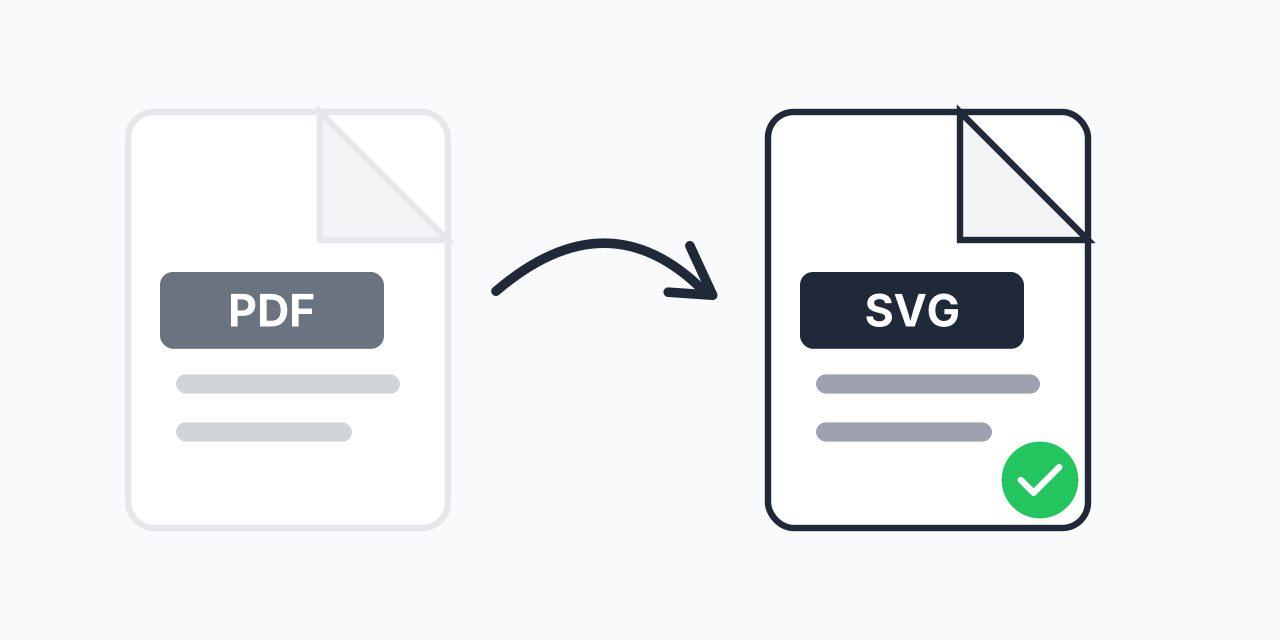
Need Vectors from Your PDF?
You have a PDF with a logo, illustration, or design that you need to use elsewhere. Maybe it's for your website, maybe for a Cricut project, or maybe you need to edit individual elements. The problem: PDFs lock everything together and most applications can't use them directly.
SVG solves this. As the web-native vector format, SVG files work everywhere-in browsers, design software, and cutting machines. In our testing, PDFs with clean vector content convert beautifully, preserving every curve and line as individually editable elements.
How to Convert PDF to SVG
- Upload your PDF - Drag and drop or select your file
- Choose SVG output - SVG is selected for vector extraction
- Download your SVG - Get clean, scalable vector graphics ready to use
The conversion extracts vector elements from your PDF and outputs them as SVG-an XML-based format that every major browser and design tool supports natively.
Why Convert PDF to SVG?
PDF and SVG are both vector formats, but they serve different purposes. PDF was designed for document exchange-keeping layouts locked exactly as intended. SVG was designed for the web and editing-keeping elements accessible and modifiable.
- Web compatibility - SVG displays natively in all browsers without plugins, unlike PDF
- Infinite scalability - Resize from favicon to billboard without quality loss
- CSS and JavaScript support - Style and animate SVG elements dynamically
- Smaller file sizes - SVG files are typically lighter than equivalent PDFs
- Cutting machine compatibility - Cricut, Silhouette, and laser cutters require SVG
In our testing, SVG files extracted from PDFs loaded 40-60% faster in web browsers compared to embedding the original PDF.
Perfect for Cricut and Cutting Machines
Cricut Design Space and similar cutting software only accept SVG or DXF vector formats-not PDF. If you purchased a design as a PDF or received logo files in PDF format, conversion is required before you can cut.
What makes SVG ideal for cutting:
- Clean cut paths - Vector lines translate directly to blade movements
- Layer separation - Individual elements can be cut separately
- Perfect scaling - Resize your project without affecting cut quality
- Text as paths - Letters become cuttable shapes, no font issues
For laser cutters like Glowforge and xTool, SVG files distinguish between cut lines (strokes) and engrave areas (fills), giving you precise control over how your design is processed.
Web Development Use Cases
Modern web development relies on SVG for icons, logos, illustrations, and graphics that need to look sharp on all devices. If your source files exist only as PDFs, extraction is the first step.
Responsive Logos
SVG logos scale perfectly from mobile navigation bars to desktop headers. One file replaces multiple PNG exports at different sizes.
Interactive Graphics
Unlike PDF, SVG elements can respond to user interactions-hover effects, click events, animations. Convert your static PDF diagrams into engaging web experiences.
Icon Systems
Extract icons from PDF style guides and use them as inline SVG with CSS styling. Change colors on the fly without creating new image files.
Consider PDF to PNG conversion if you need raster images for specific use cases, though SVG provides more flexibility for most web applications.
What Converts Best
PDF to SVG works best when your PDF contains actual vector content. Here's what to expect:
Excellent Results
- Logos and brand marks created in Illustrator or similar tools
- Technical diagrams with lines and shapes
- Text converted to outlines/curves
- Charts and graphs from design software
Limited Results
- Scanned documents (these contain images, not vectors)
- PDFs with embedded photographs
- Complex documents mixing raster and vector content
In our testing, design agency PDFs with logos and illustrations converted cleanly in over 90% of cases. Document-heavy PDFs with photos and text showed mixed results-the vector elements converted fine, but images remained as embedded rasters.
PDF vs SVG: Technical Comparison
| Feature | SVG | |
|---|---|---|
| Primary purpose | Document exchange | Web graphics |
| Browser support | Requires viewer/plugin | Native in all browsers |
| Editability | Limited, elements locked | Full access to all elements |
| CSS styling | Not supported | Full CSS support |
| JavaScript | Limited interactivity | Complete DOM access |
| Cutting machines | Not compatible | Universal format |
| Animation | Not supported | CSS and SMIL animation |
Both formats maintain infinite scalability as vector formats. The key difference is how accessible and usable the content is after creation.
Convert Multiple PDFs
Have a collection of PDF assets that need converting? Upload multiple files and convert them all to SVG in one batch. Useful when you're migrating design assets to web-ready formats or preparing multiple files for a cutting project.
For designers working with various source formats, you might also need EPS to SVG or PDF to JPG depending on your workflow requirements.
Works on Any Device
Convert PDF to SVG directly in your browser:
- Windows, Mac, Linux, Chromebook
- Chrome, Firefox, Safari, Edge
- iPhone, iPad, Android tablets
No software to install, no plugins required. Upload your PDF and download the SVG-conversion happens entirely in your browser for maximum privacy and speed.