
Online Voice Recorder
Click Start Recording, speak into your microphone and click Stop Recording. Play the take back, then download it as MP3, WAV or WebM; the recording and the file are both made in your browser, with nothing uploaded.
How to
How to record your voice online
To record audio online here, you need a microphone your computer or phone already knows about, built in or plugged in, and a browser that lets this page use it.
- 1
Allow the microphone
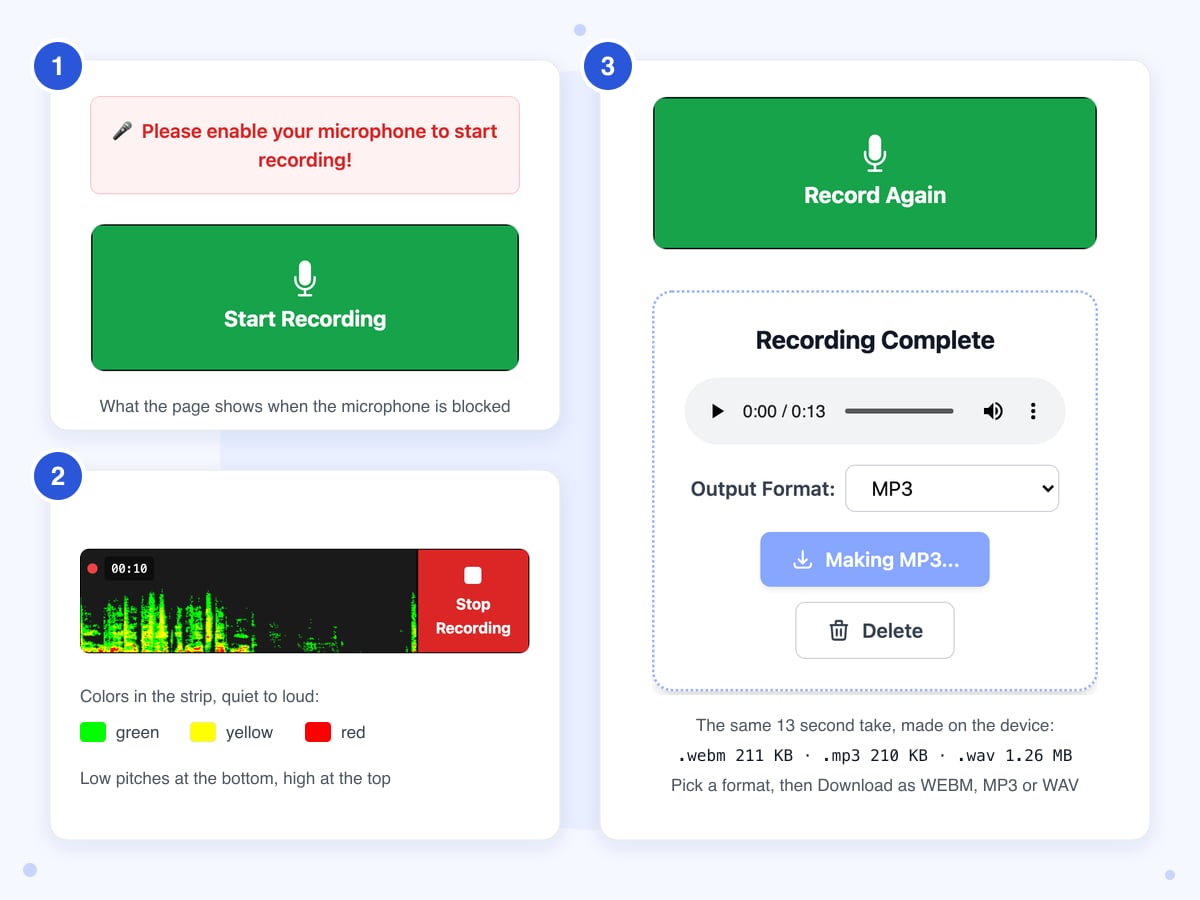
The browser asks for the microphone as soon as the page opens, so click Allow on that prompt. If a red banner says "Please enable your microphone to start recording!", access was blocked, and Start Recording won't work until you allow it and reload the page.
- 2
Start Recording and speak
When you click Start Recording, the button turns red, a timer counts the seconds and the dark strip draws your voice as it comes in. If the strip stays black while you talk, the browser is using the wrong microphone or a muted one. Click Stop Recording when you're done.
- 3
Pick a format and download
Recording Complete appears with a player, so you can listen first. Pick WebM (Original), MP3 or WAV under Output Format and click the Download button; it reads Making MP3... while your device builds the file. Download before you press Record Again, which clears the last take at once.
Guide
WebM, MP3 or WAV: what the voice recorder saves
The page records with the browser's own recorder, which saves the take as a WebM file, the same kind of sound browsers send in video calls. When you pick MP3 or WAV, the page turns that WebM into the new file in the same tab, so all three downloads are copies of one recording.
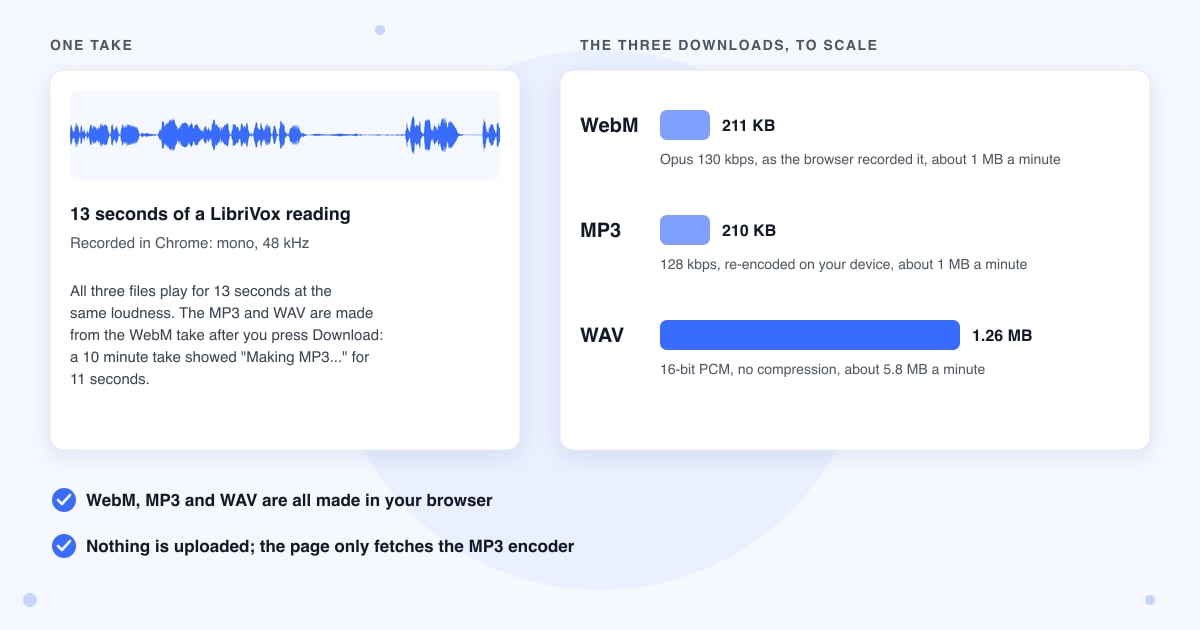
All three files of our 13 second take played for 13 seconds at the same loudness, so pick the format by where the file goes next.
Which format to pick
MP3 is the one to send, upload or play in a car, since nearly every player opens it, and it comes out about the same size as the WebM, though it's squeezed a second time on top of the original take. WAV suits audio editors and apps that ask for it, but it's six times the size of the MP3, and because it's made from the WebM take, it holds no more detail than the WebM. WebM is the take exactly as recorded; it plays in Chrome, but the audio tool built into macOS couldn't open ours. For a WebM recorded earlier, WebM to MP3 converts it, though that page uploads the file to our server.
If you blocked the microphone
If you clicked Block, or blocked the site some time ago, click the icon at the left end of the address bar, set Microphone to Allow and reload the page. The browser also needs your computer's permission: on a Mac it's under System Settings, Privacy & Security, Microphone, and on Windows 11 under Settings, Privacy & security, Microphone.
Which microphone it uses
The page has no microphone picker. To record from a USB mic or a headset, choose it in Chrome under Settings, Privacy and security, Site settings, Microphone, or in your system's sound settings, then reload. The browser's own echo and noise cleanup stays on, along with automatic volume leveling. They help a voice note in a noisy room, but they're tuned for speech, so singing or an instrument can come out flattened.
Long recordings
Our 10 minute test take stopped cleanly with the timer at 10:00, and the WebM came to 9.7 MB. Making the MP3 took 11 seconds and the WAV about a second, but the WAV weighed 57.6 MB, and we haven't recorded for longer than 10 minutes. To make an MP3 or WAV, the page first unpacks the whole take into memory, which by the code's math is about 1 GB for an hour, so for a recording that long, download the WebM first.
Safari, iPhone and iPad
The recorder asks the browser for a WebM file, and Safari only learned to record WebM in version 18.4, which came out in March 2025 with iOS 18.4 and macOS 15.4. On anything older, the page's code has no fallback to another format, so we expect Start Recording to do nothing. Other browsers on an iPhone normally run on Safari's engine, so updating iOS is the fix there. We tested in Chrome on a Mac, not in Safari, so we haven't seen Safari record a take or turn it into MP3 or WAV; if it can't, a red line under the buttons says to download the WebM instead.
Using the sound strip as a mic test
The strip shows pitch from low at the bottom to high at the top, and color shows how strong each pitch is: nothing for very quiet, then green, yellow and red as it gets louder. Normal speech is mostly green and yellow with red at the bottom on stressed words. Red doesn't mean the sound is distorted, so play the take back to judge that.
Trimming or transcribing the take
Download the take as MP3 or WAV if it's going into another of our tools. Audio Cutter and Transcribe Audio accept both but not .webm files. Unlike the recorder, those two tools upload the file to our server to do their work.
Last updated: 22 October 2026 · ChangeMyFile
Tested: 22 October 2026, in headless Chrome 156 on a Mac with a fake microphone playing the LibriVox public domain reading of the Gettysburg Address. A 13 second take, run twice, downloaded three ways with the same result both times: WebM 210,884 bytes, Opus at 48 kHz mono, 130 kbps; MP3 209,664 bytes, 128 kbps, 48 kHz mono, 13.10 seconds; WAV 1,255,724 bytes, 16-bit PCM at 48 kHz mono, 13.08 seconds. All three measured the same loudness to within 0.4 dB, with no clipping added. Recording Complete showed 0.04 seconds after Stop, each download was ready in under half a second, Record Again cleared the finished take at once, and the only thing the page fetched was the MP3 encoder's script. A 10 minute take: 9.66 MB as WebM; the MP3 took 11 seconds to make (9.6 MB, 600.1 seconds) and the WAV 1.2 seconds (57.6 MB). With the microphone blocked, the red banner showed and Start Recording did nothing.
FAQ
Voice recorder questions
At a glance
- Where it runs
- In your browser, nothing uploaded
- Formats
- MP3, WAV or WebM
- MP3
- Mono, about 1 MB a minute
- WAV
- Uncompressed mono, about 5.8 MB a minute
- WebM
- The original take, about 1 MB a minute
- Time limit
- None set by the page
- Pause
- No, one continuous take
- Microphone
- The browser's default input
- Safari
- 18.4 or later, not tested by us
- Account
- Not needed
Can't find your answer? Visit our Help center.