
Transcribe Audio to Text
Upload a recording and get the words back as plain text, plus SRT and VTT subtitle files. The file goes to our server, where OpenAI's Whisper speech model writes the transcript.
Drop an audio file to transcribe
Drag file here or pick from your device
MP3, WAV, FLAC, M4A, AAC, OGG, OPUS, AIFF, AIF, WMA · up to 200 MB · max 90 minutes
How to
How to transcribe audio to text
Start with a sound file, such as a voice memo, a podcast episode or a recorded call. The file is uploaded to our server, so keep the tab open until you've downloaded what you need.
- 1
Pick your audio file
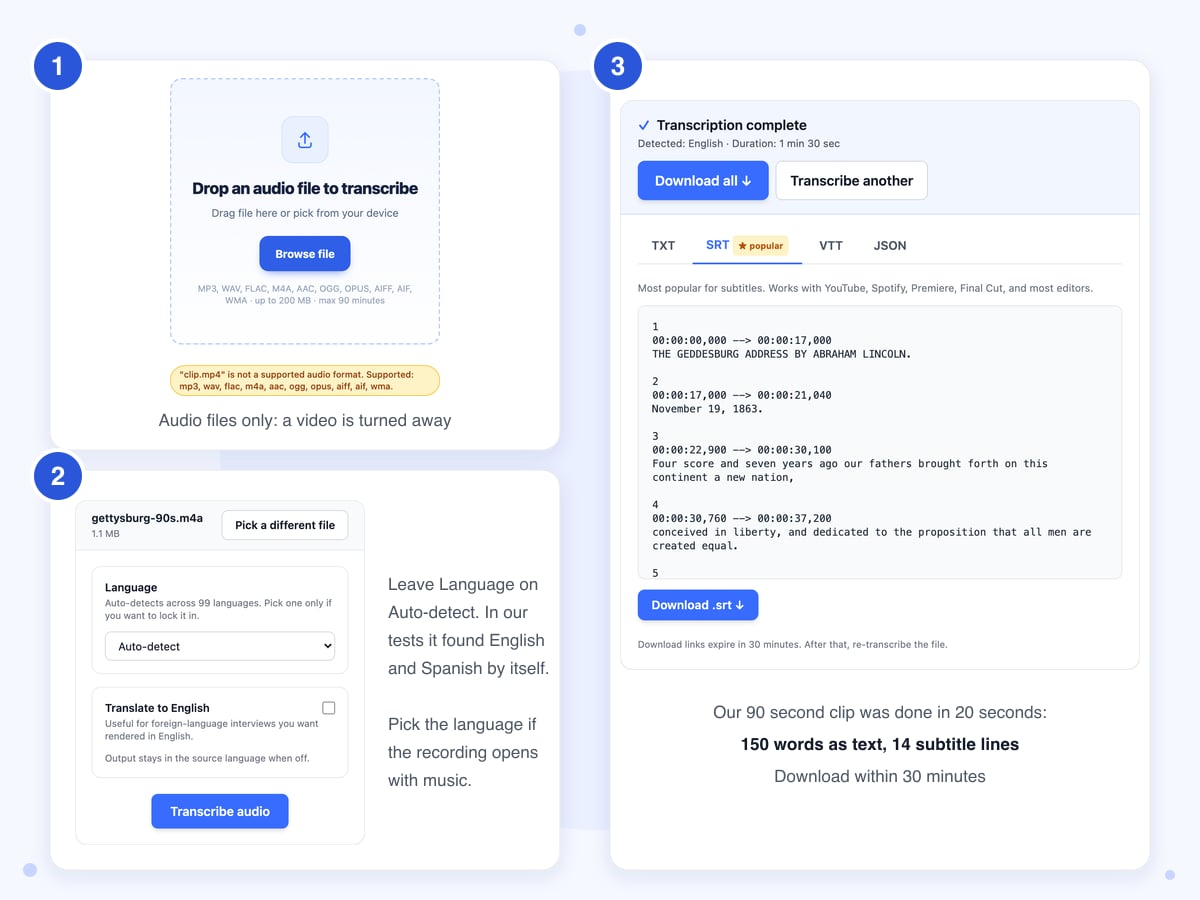
Drop the file on the box or click Browse file. A video such as an MP4 is turned away with a yellow note, so pull the sound out of the video first and upload that instead.
- 2
Choose the language, then click Transcribe audio
Leave Language on Auto-detect in most cases, since the model guesses the language from the first 30 seconds, so if the recording opens with music or with someone speaking another language, pick the right one from the list before you click Transcribe audio.
- 3
Check the words and download
When Transcription complete appears, the text is on the TXT tab with Copy to clipboard under it, and the SRT and VTT tabs hold the subtitles. Click Download all to save all four files at once. The links stop working after 30 minutes, so download before you step away.
Guide
Audio to text and SRT subtitles: what you get back
Every run returns the same four files, whatever you plan to do with them. TXT is the plain words in one long paragraph, with no times and no speaker names. SRT and VTT hold the same words cut into short lines, each with the moment it starts and stops. JSON is the full answer from the speech model, which matters mostly to people writing their own code.
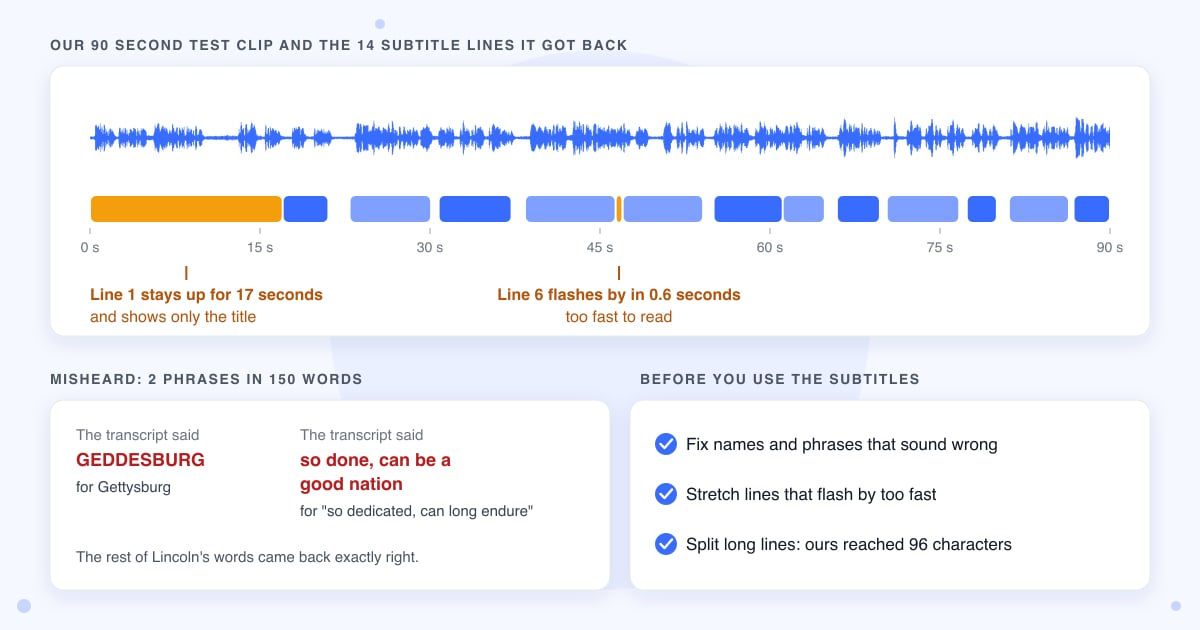
We ran a 90 second reading of the Gettysburg Address and a 48 second Spanish fable through the tool. The results were good enough to work from, but not good enough to publish without a read-through.
Which AI writes the transcript
The words come from Whisper, OpenAI's speech-to-text model, which we run through a service called Replicate; Replicate lists the version as large-v3. Your file goes from our server to Replicate, and Replicate deletes its copy after an hour.
How accurate it was
Out of about 150 words in the Gettysburg test, two phrases were wrong. The title came back in capitals as GEDDESBURG, and "so dedicated, can long endure" came back as "so done, can be a good nation". The rest of Lincoln's words were exactly right, and the date came out as "November 19, 1863". Names and odd phrases are where to look first, so read the text against the recording before you quote it.
Using the SRT file for subtitles
SRT is the file to upload to YouTube or open in a video editor, while VTT is for players built into web pages. The lines follow the speaker's pauses, not a set length, so they can run long; one of ours had 96 characters, which is two lines on most screens. Timing needs a check too, because our first line stayed up for 17 seconds while showing only the title, and line 6 was on screen for just 0.6 seconds. Fix those in your video editor before the video goes out.
Length and size limits
The most audio the tool takes is 90 minutes, and that check runs after the upload, so a longer file uploads in full and only then fails. The box says up to 200 MB, but the network service in front of our server turns away anything over about 100 MB with "File is too large". An MP3 uses about 1 MB a minute, so 90 minutes fits, but a CD-quality WAV uses about 10 MB a minute and passes 100 MB at around 10 minutes. Turn a long WAV into MP3 first with WAV to MP3; the words come out the same.
Videos, voice notes and WebM files
Only sound files are accepted: MP3, M4A, WAV, FLAC, OGG, OPUS, AAC, AIFF and WMA. For a video, get the sound out first with Extract Audio and upload the MP3 it gives you. A WebM recording is also turned away; WebM to MP3 fixes that, and our Voice Recorder can save a new recording as MP3 to begin with. iPhone voice memos are M4A files, which work as they are; our English test clip was an M4A.
How long your files are kept
Your audio is deleted from our server as soon as the transcript is done, but if the job fails, the audio waits for the nightly cleanup, which removes anything older than an hour. The four transcript files stay until that same cleanup, but their download links stop working 30 minutes after they're made. Cancel only stops this page from checking on the job, so the server still finishes it.
Last updated: 22 October 2026 · ChangeMyFile
Tested: 22 October 2026, headless Chrome 156 on a Mac against the live server, two jobs. Job 1: the first 90 s of the LibriVox public domain reading of the Gettysburg Address, saved as an M4A (AAC 96 kbps mono, 1.1 MB), Auto-detect. Done 20.2 s after clicking Transcribe audio; Detected: English, Duration 1 min 30 sec, model openai/whisper. TXT 828 bytes and 150 words in one paragraph, SRT 14 cues (1,294 bytes), VTT 1,269 bytes, JSON 8,906 bytes with per-segment start and end times. Two misheard phrases, listed above; cue 1 ran 0 to 17 s, cue 6 lasted 0.6 s, longest cue 96 characters. Job 2: LibriVox public domain reading of Aesop's "El Cuervo Enfermo" in Spanish (MP3, 48 s, 377 KB) with Translate to English ticked. Done in 26.3 s, Detected: Spanish; TXT, SRT (8 cues) and VTT in Spanish, English only in the JSON "translation" field without timings. An MP4 and a WebM were refused in the browser before upload. Upload size probed with non-audio files: 99 MB reached our server, 101 MB and 150 MB were refused with 413 by Cloudflare. All download links returned the files straight after each job.
FAQ
Audio transcription questions
At a glance
- Where it runs
- On our server, with the speech model at Replicate
- Speech model
- OpenAI Whisper, via Replicate
- Files you get
- TXT, SRT, VTT and JSON
- Longest audio
- 90 minutes
- Size limit
- About 100 MB
- Languages
- Auto-detect, or pick one
- Download link
- Works for 30 minutes
- Files deleted
- Your upload once the transcript is done, the rest in a nightly cleanup
- Account
- Not needed
Can't find your answer? Visit our Help center.