
Redact PDF
Draw black boxes over text or images in a PDF and download the copy. The boxes hide content on screen and on paper, but the text under them stays in the file.
Select a PDF file to redact
Drop your PDF here
Drag file here or pick from your device
How to
How to black out text in a PDF
You need the PDF saved on the device you are using. Decide before you start who gets the result, because the boxes hide content from people looking at the page, not from people who have the file.
- 1
Open the PDF
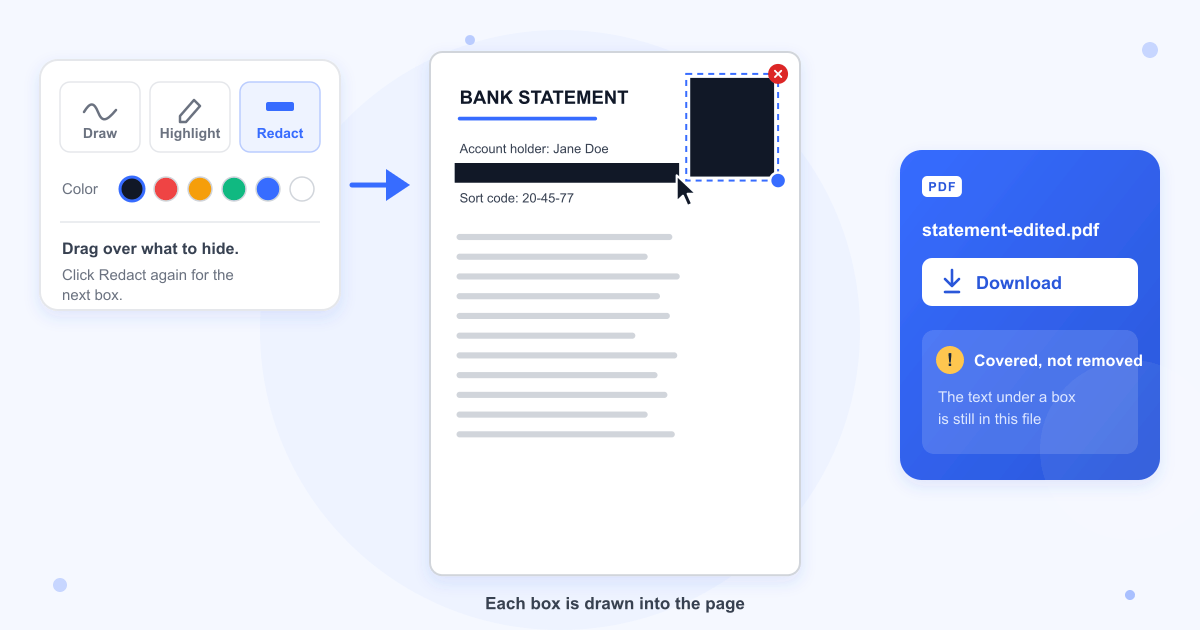
Drag the PDF into the dashed box or choose it with Browse file. The editor opens with Redact already selected in the toolbar.
- 2
Drag a box over each part to hide
Press and drag across the words or picture you want covered. The tool switches off after every box, so click Redact again before you draw the next one.
- 3
Check the boxes and download
Drag a box to move it, pull its blue corner dot to resize it, or click the red x to delete it. Click Download and the copy is saved with -edited added to the name, so statement.pdf becomes statement-edited.pdf.
Guide
Covering text in a PDF is not the same as removing it
This tool covers content. It does not delete it. Each box is painted onto the page, so any PDF reader, printer or shared screen shows solid black, but the words and pictures underneath stay in the file. In our test the account number under a box came out in full when we copied the page text, and the photo under the second box was still stored in the file, byte for byte the same. Don't send the downloaded file to anyone who must not see what the boxes hide.
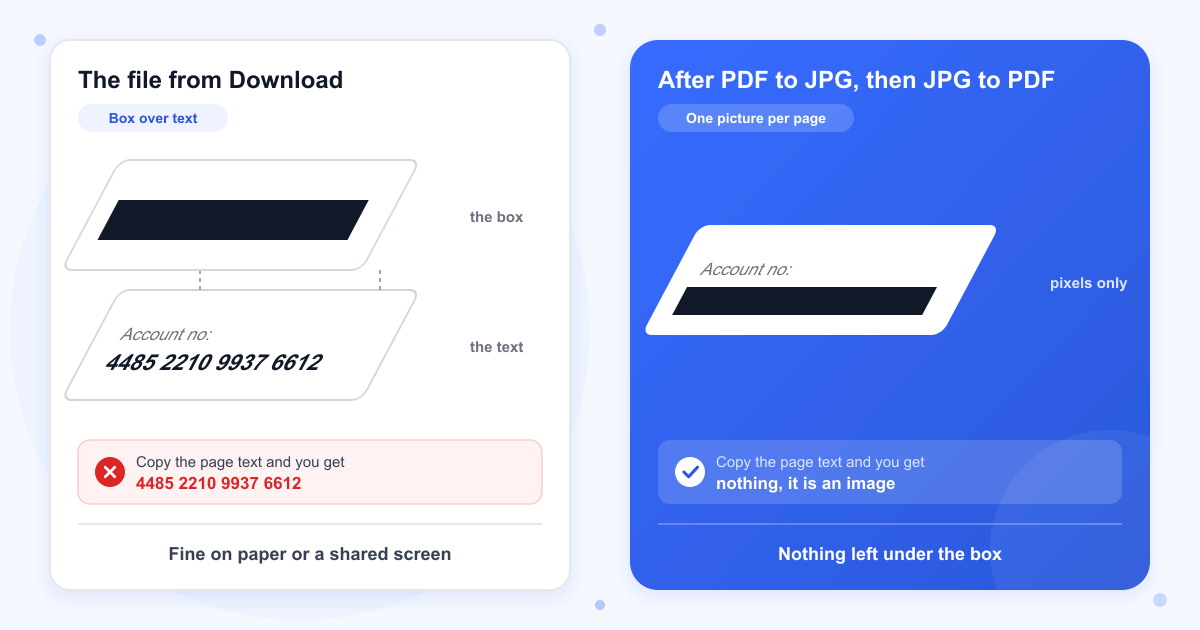
If the file itself has to be shared, turn the covered page into a picture. Convert the downloaded PDF with PDF to JPG, then turn that JPG back into a PDF with JPG to PDF. What comes back holds only an image of the page with the box already in it, so the covered words are gone for good. The rest of the page can no longer be selected or searched either.
Covering versus true redaction
True redaction deletes the characters and image pixels inside the marked area, then paints the box over the empty space. This editor only paints the box, which is why a covered word can still be copied or found with search. The box can also be taken away: we deleted ours from the downloaded file with a PDF editing script, and the account number and photo showed again.
When a covered copy is enough
Printed pages show the box with nothing behind it, and so does a screen you share in a meeting or a screenshot of the page. A paper copy you hand over, or a document you present without sending, is a fair use for this tool on its own.
Scanned pages
A scanned page is one large picture, and a box drawn over it leaves that picture untouched. In our test the scan came out of the downloaded file exactly as it went in, so a scan needs the same image step as a typed document before it is shared.
Documents with more than one page
PDF to JPG gives back only the first page of a longer PDF. Cut the document into single pages with Split PDF, run each page through PDF to JPG and JPG to PDF, then put them back in order with Merge PDF.
Password-protected PDFs
Boxes can't be saved into a PDF that has a password, even a password that only stops printing or editing. Take it off with Remove PDF Password and draw the boxes on that copy.
Last updated: 17 October 2026 · ChangeMyFile
Tested: 16 October 2026. Opened a one-page bank statement in Chrome and drew two boxes, one over the account number and one over an ID photo. In the downloaded file, pdftotext, pypdf and pdf.js all still read the account number, the photo came out identical to the original, and the boxes were part of the page with no annotations. Deleting the two fill commands from the page brought the number and photo back into view. A box over a scanned page left the scan unchanged. Running the covered statement through PDF to JPG and JPG to PDF gave a one-page PDF holding only a JPEG and no text, in about 10 seconds per step. PDF to JPG on a 2-page PDF returned page 1 only.
FAQ
Redact PDF questions
At a glance
- Removes text under the box
- No
- Removes images under the box
- No
- Box is saved as
- Part of the page
- Where it runs
- In your browser
- Boxes per PDF
- As many as you draw
- Account
- Not needed
Can't find your answer? Visit our Help center.