
Merge Video
Upload 2 to 10 clips, drag them into order and download one MP4. Clips that already match are joined as they are, and a mix of shapes or sizes is rebuilt to fit one frame.
Drop 2 to 10 videos here
Drag videos here or pick from your device
MP4, MOV, MKV, WEBM, AVI, M4V, 3GP, FLV, WMV · up to 500 MB
How to
How to merge videos into one file
Any mix of the nine formats the upload box lists will do, phone recordings included.
- 1
Upload the clips
Drag 2 to 10 videos onto the upload box, or click Browse videos and pick them from your device. The counter above the clips shows how many files and how much of the size limit you've used, and dropping more files onto the same box adds them to the batch.
- 2
Put them in order
Each clip shows as a card with a number on it, and the numbers are the order they'll play in. Drag a card to move it, or use the arrows under it. The small red text under each thumbnail shows the clip's pixel size, which is worth a glance, because a portrait clip in a row of landscape ones gets black bars.
- 3
Merge and download
Click Merge videos, and the clips upload first, with a percentage bar, before the server joins them; our three-clip test took 28 seconds, and a long batch can take a few minutes. When Merged video ready appears, click Download. The link stops working after 30 minutes, so save the file straight away.

Guide
Merging MP4 and MOV clips: what happens to size, smoothness and sound
The tool joins your clips end to end on our server and gives you back one MP4. How it does that depends on whether the clips already match. When every clip was saved in the same video format, at the same picture size and number of frames per second, with the same kind of sound, they're joined as they are. That takes seconds and keeps the picture exactly as it was. When anything differs, every clip is rebuilt into one common format first, and that's what happens to a batch from two different cameras.
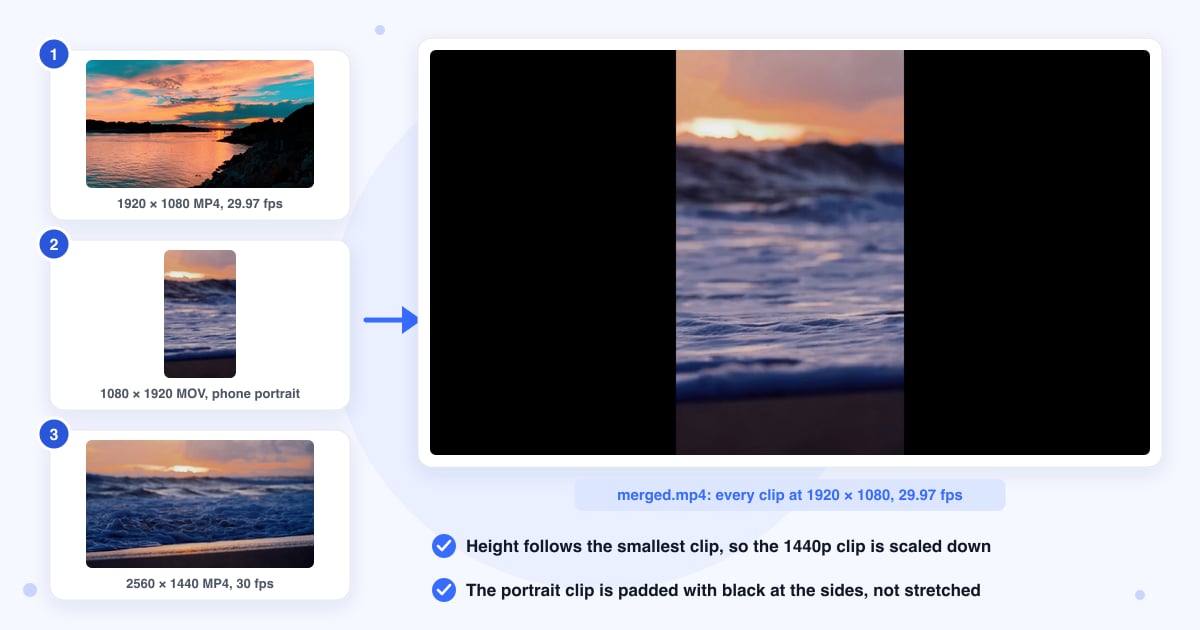
Both cases came from the same test run on 21 October 2026, described at the bottom of this page. Two MOV clips that matched were joined in 8 seconds and kept as they were. Three clips that didn't match, a 1080p MP4, a portrait MOV and a 1440p MP4, were rebuilt into one 1920 by 1080 file in 28 seconds. The sections below are what we learned from those runs and from the code that does the work.
Clips of different sizes get black bars, not stretched
When the clips differ, the merged file takes the height of the smallest clip, so a 1440p clip merged with a 1080p one comes out at 1080p and nothing is upscaled. Each clip is then scaled to fit that frame and the gap is filled with black. A portrait phone clip in a row of landscape ones plays with black bars at the sides, as in the picture above, and because the frame is as wide as the widest clip at that height, a 4:3 clip in a widescreen batch gets bars at the sides too. If a clip is sideways, fix it with Rotate Video before you merge.
The merged video is only as smooth as the least smooth clip
Phones and cameras record 24, 30 or 60 still frames a second, and more frames look smoother. A merge of clips that differ comes out at the lowest number in the batch, because dropping frames looks cleaner than inventing them. In our test a clip at 24 frames a second merged with one at 30 gave a file at 24. A 60-frame game recording joined to a 30-frame camera clip will play at 30 for its whole length, so if the smoothness matters, merge it only with other 60-frame clips.
MOV files from an iPhone
MOV clips upload and merge like any other format, including the space-saving format an iPhone records in by default. If all the MOVs match, they're joined as they are and the MP4 you get keeps that iPhone format, which plays on Apple devices and in most current players but may need an add-on from the Microsoft Store on an older Windows PC. A MOV merged with an MP4 from another camera is rebuilt as a standard MP4, which plays everywhere. To turn a single clip into a standard MP4 without merging, use MOV to MP4.
Sound: all clips with audio, or none
When clips are rebuilt, their sound comes back as one stereo track at good quality, which adds about 1 MB per minute of video. There's one combination to avoid: in our test, a merge of a clip with a sound track and two clips with no sound track at all failed with an error after about 80 seconds, while two silent clips merged without trouble. Screen recordings and stock clips often have no sound track. If a merge fails and some of your clips are silent, run the clips with sound through Remove Audio first, then merge; the result will have no sound at all.
The 1 GB limit and large MP4 files
Each clip can be up to 500 MB and the batch up to 1 GB in total. Files go straight from your browser to our storage, so a big clip uploads fine, though on home broadband a 500 MB file still takes a few minutes. A batch over the limit stops with a message before anything uploads. To get under it, trim the clips with Cut Video or shrink them with Compress Video first; compressing two clips the same way also makes them more likely to match and merge without being rebuilt.
Quality and file size when clips are rebuilt
A rebuilt merge uses a standard quality setting, so the result looks close to the originals at normal viewing size, though every extra round of compression loses a little detail. The output size depends on the footage: our three clips went in at 21 MB and came out at 7.8 MB, while two silent clips, one landscape and one portrait, went in at 10.9 MB and came out at 11.6 MB. Joining clips that already match copies the picture exactly, so the quality doesn't change at all.
If the merge fails
Three things stop a merge: a combined size over 1 GB, which the page reports before uploading; a mix of clips with and without sound, covered above; and a clip that isn't a real video, for example a file whose extension was changed by hand. A rebuild has a 30 minute limit on the server, so ten long 4K clips can also time out; cut them down or compress them first. Cancel stops the upload, or stops the page waiting for the result; a merge the server has already started runs to the end, and the files of a failed job are removed by the nightly cleanup.
Last updated: 21 October 2026 · ChangeMyFile
Tested: 21 October 2026, four runs on the live tool, with short cuts of Pixabay stock clips. Two 7-second HEVC MOV clips that matched exactly, 1920 x 1080 at 30 fps with stereo AAC: joined in 8 seconds without re-encoding, back as a 10.2 MB MP4 of 14 seconds with the HEVC video kept. Three clips that didn't match, a 1920 x 1080 MP4 at 29.97 fps, a 1080 x 1920 HEVC MOV at 30 fps and a 2560 x 1440 MP4 at 30 fps, 21 MB together: done in 28 seconds, back as a 7.8 MB H.264 MP4, 1920 x 1080 at 29.97 fps, 21 seconds long, with the portrait clip padded black at the sides and the 1440p clip scaled down. Two clips with no sound track, a 1920 x 1080 MP4 at 24 fps and a 1080 x 1920 MOV at 30 fps: done in 20 seconds, back as an 11.6 MB MP4 at 1920 x 1080, 24 fps, with no audio track. The same two silent clips plus a 2560 x 1440 clip with sound: failed after 80 seconds with the message "ffmpeg failed".
FAQ
Video merging questions
At a glance
- Formats you can upload
- MP4, MOV, MKV, WebM, AVI, M4V, 3GP, FLV, WMV
- Clips per merge
- 2 to 10
- Upload limit
- 500 MB a clip, 1 GB in total
- Result
- One MP4
- Matching clips
- Joined as they are, no quality loss
- Mixed clips
- Rebuilt as a standard MP4, height of the smallest
- Time
- 8 to 28 seconds in our tests
- Where it runs
- Our server
- Download link
- Expires after 30 minutes
- Files deleted
- Uploads when the job ends, the rest nightly
- Account
- Not needed
- Watermark
- None
Can't find your answer? Visit our Help center.