
How to change a file extension, type, or format
To change a file's extension you rename it; to change its actual format you convert it. Here's how to do each on Windows and Mac, and how to tell which one you need.
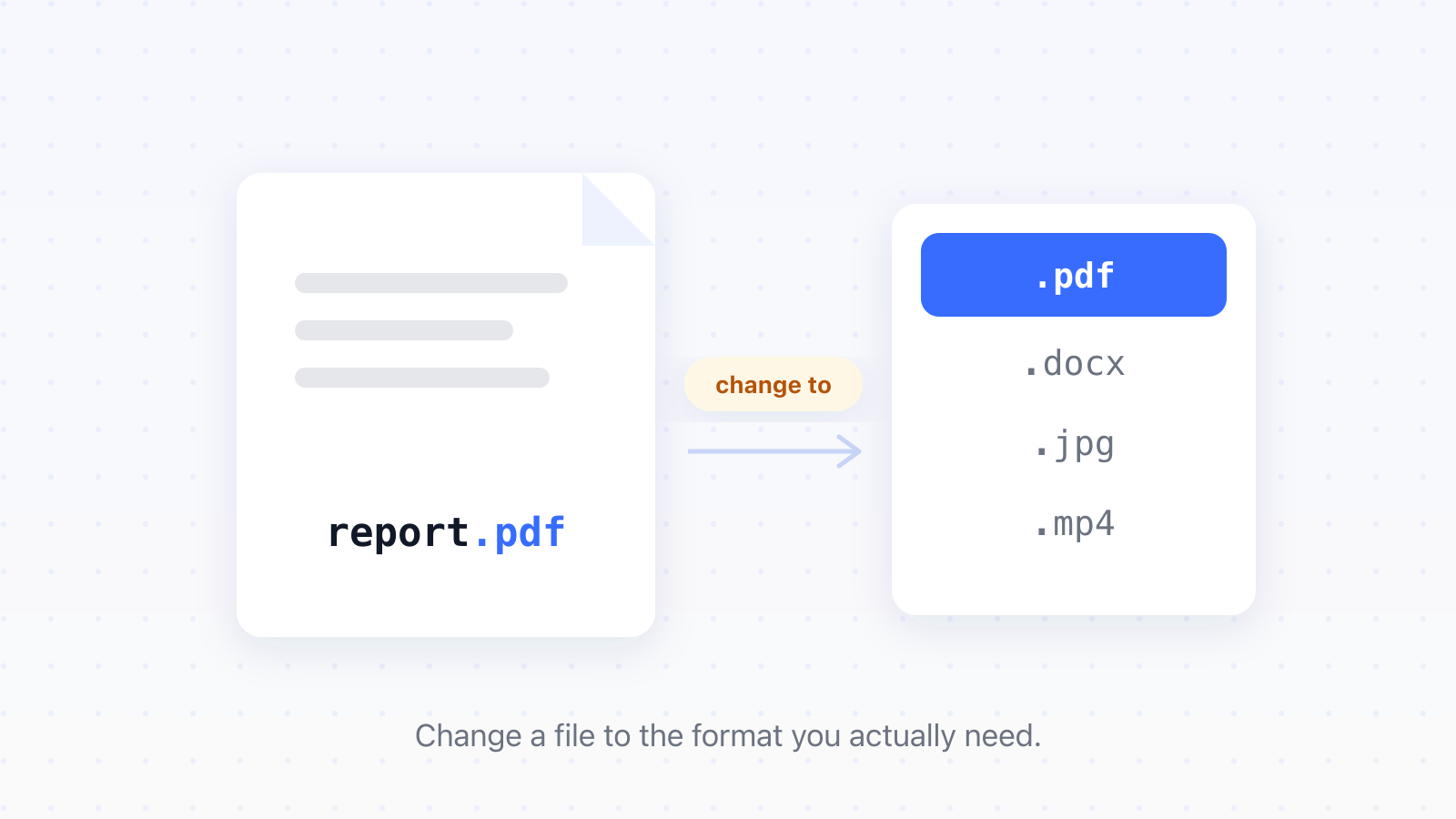
To change a file's extension, you show file extensions in Windows or macOS and rename the part after the final dot. To change the file's actual format, so it genuinely becomes a different type, you convert it instead. Which one you need comes down to one thing: whether the file's contents are already right, or whether they have to change.
How to change a file extension on Windows and Mac
Changing the extension is a rename, and both Windows and macOS hide extensions by default, so the first step is making them visible.
- Show file extensions. Windows 11: File Explorer, then View, then Show, then File name extensions. macOS: Finder, then Settings, then Advanced, then Show all filename extensions.
- Right-click the file and choose Rename.
- Edit the part after the final dot, then press Enter.
- Confirm the warning that the file may become unusable.
On Windows 10 the same toggle lives under the File Explorer View tab. That warning about the file becoming unusable is the one thing worth understanding: nothing inside the file is being changed to match its new name.
This is all you need when the file is already the right format and only the label is wrong, such as a data export saved as .txt that is really comma-separated values, a photo your camera wrote as .JPEG when a tool wants .jpg, or a download that arrived with no extension at all.
When renaming works, and when you need to convert instead
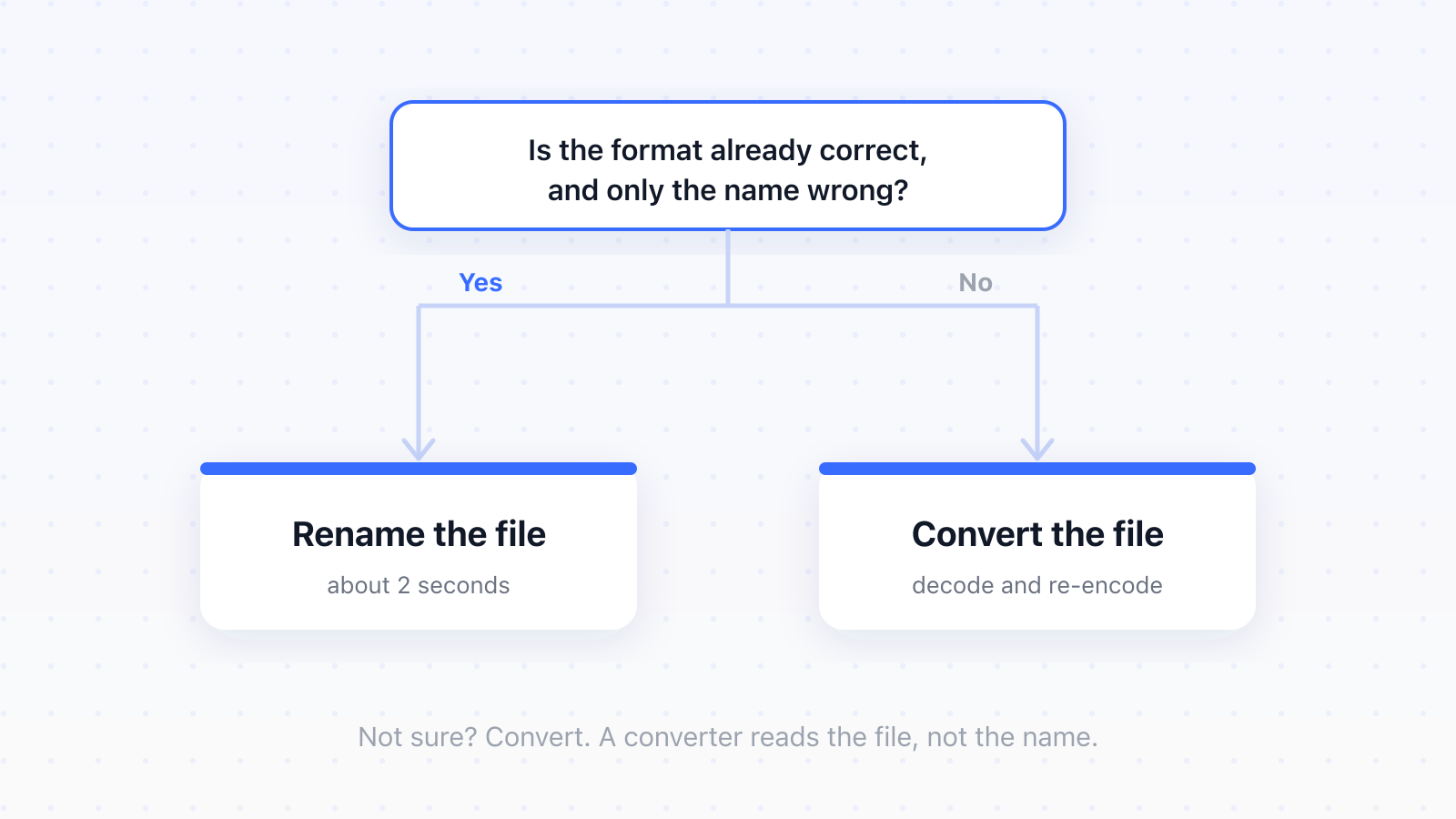
Renaming is safe when both extensions describe the same underlying format. It fails whenever they describe different ones, because relabelling cannot restructure the data. When you're not sure, convert instead.
- Safe: .jpeg to .jpg, .htm to .html, .tif to .tiff. These are alternative spellings of one format.
- Safe: adding a missing extension to a file whose format you already know.
- Breaks: .heic to .jpg, .png to .jpg, .webp to .png. Different encodings entirely.
- Breaks: .docx to .pdf, .mov to .mp4. Different container structures, with nothing in common inside.
Why a renamed file opens on your machine but breaks on someone else's
The confusing part is that a wrongly renamed file often opens perfectly on your own computer. Every format starts with a short signature in its first few bytes, sometimes called a magic number, and many programs read that signature and ignore the name entirely. So the file opens fine for you, then fails the moment you send it to someone whose software trusts filenames, or upload it to a service that checks the real format on its server. It was malformed the whole time; you just hadn't met an application strict enough to say so.
Rather than take our word for it, we measured it. We took a PNG image of 11,384 bytes, copied it to a file named fake.jpg, and ran the Unix file command on both. That command reads a file's actual contents rather than trusting its name, and here's what it reported:
- real.png identified as: PNG image data, 1600 x 900
- fake.jpg identified as: PNG image data, 1600 x 900
- Both files 11,384 bytes, byte for byte identical
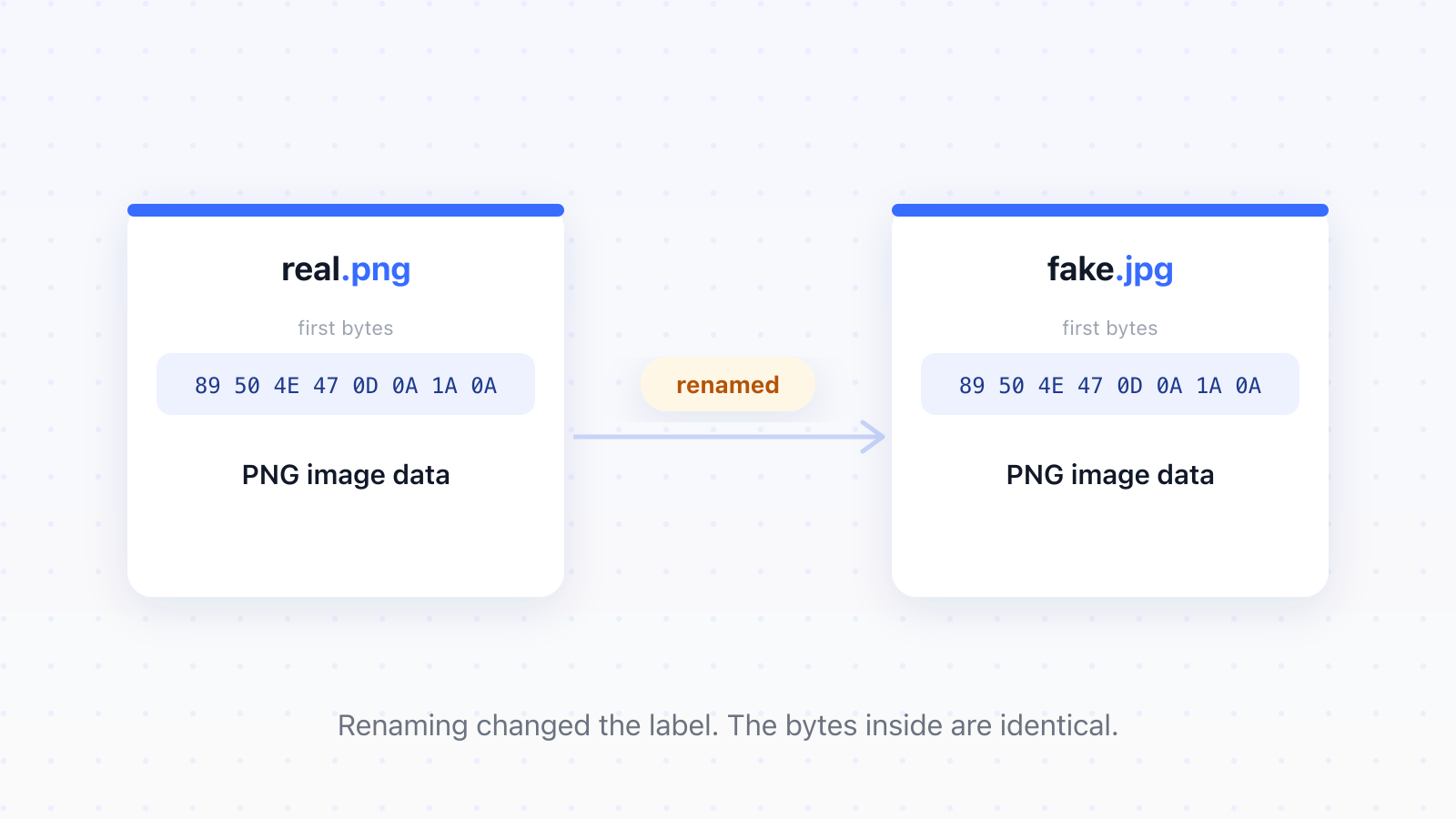
The .jpg on the end did nothing. Because the bytes never changed, the file is still a PNG, and any program that reads the signature sees straight through the new name.
The extension is a label; the format is what's inside. Renaming edits the label and nothing else.
For comparison we ran a real conversion on the same image. The result was 32,356 bytes and identified as JPEG image data, a different file, not a relabelled one. Notice it came out nearly three times larger than the PNG it started from. Our test image was flat artwork with few colours, exactly the case PNG's lossless compression handles brilliantly and JPEG handles badly, so converting isn't a synonym for shrinking.
How to convert a file to a different format
If you already have an app that opens the file, its Save As or Export menu may do the conversion for free: Paint saves a PNG as a JPG, Word exports a DOCX to PDF, and Preview on a Mac exports between image formats. A converter is for when you don't have the right app, the format you want isn't offered, or you have many files to do at once.
Converting itself means decoding the file from its current encoding and writing it out again in the new one. That's why a converter works even on a file somebody has already renamed wrongly: it reads the contents, not the name.
- Not sure what your file is, or what it should become: run it through the file converter, which reads the file and shows you the formats it can produce.
- Already know the category: go straight to the image converter, the video converter, or the document converter, or browse every supported format.
There's one caveat worth carrying forward. Converting between two lossy formats costs a little quality every time, because the file is decoded and re-encoded, and each encoder discards detail it judges you won't miss. Converting a JPEG to PNG and back won't recover what the first save threw away. Always convert from the highest quality copy you still have.
Changing a video file type (MP4, MOV, MTS)
Video is where this causes the most confusion, because the extension often hides the real situation. A container like MP4 or MOV is only the box; the actual video sits inside it as a stream in some codec, usually H.264. A .mov and an .mp4 can hold the exact same H.264 stream in different boxes, which is why the fix is sometimes a remux, repackaging the streams into a new container without touching them, rather than a full re-encode that decodes and rebuilds the video and loses a little quality.
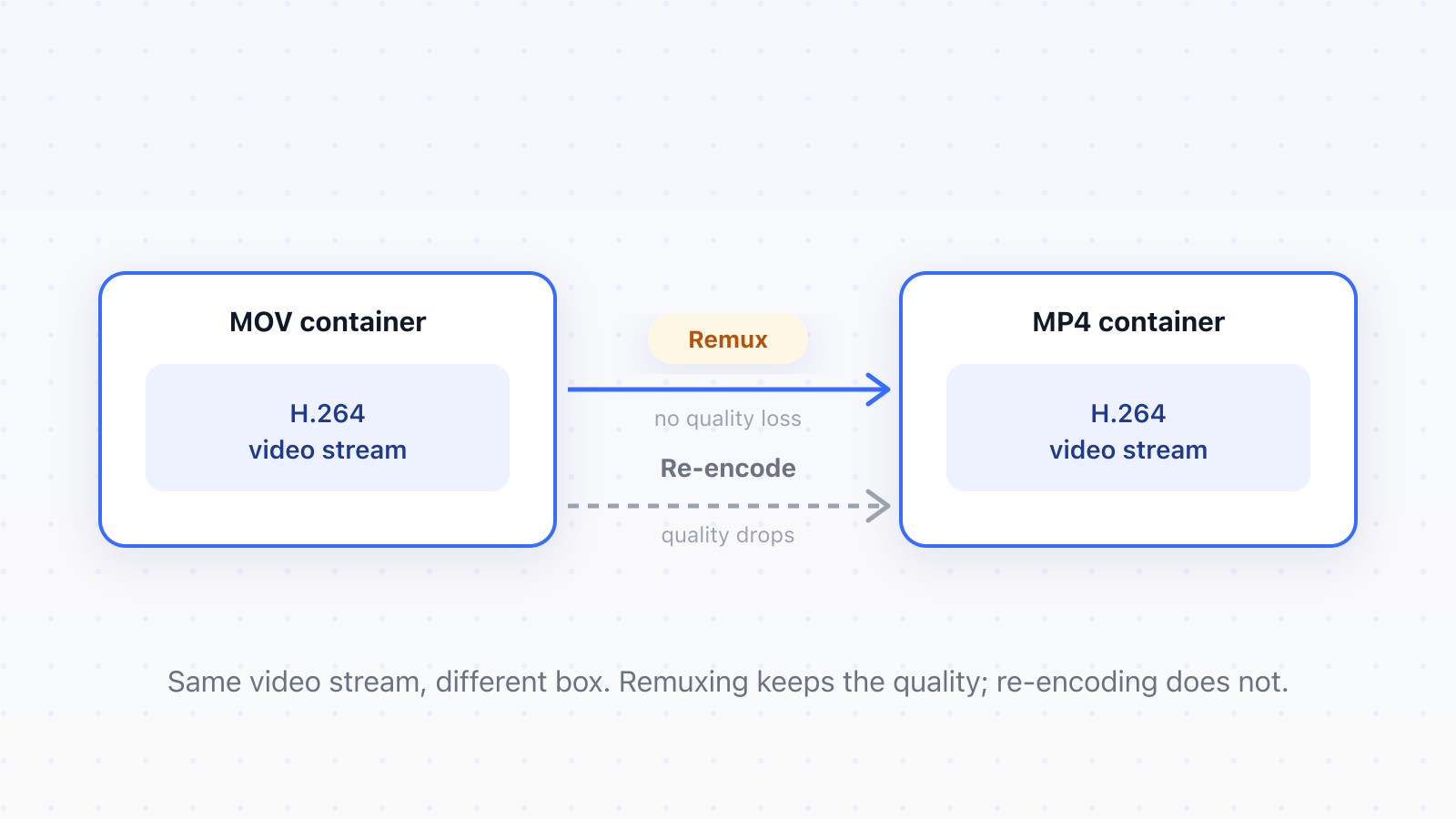
This is why Apple's own guidance says you can often just rename an H.264 .mov to .mp4 and it plays: the codec inside is unchanged, so only the box differs. When two formats already share a stream, MOV to MP4 repackages it rather than re-encoding, so nothing is lost. The same logic catches a common mistake: renaming a .mp4 to .mp3 just leaves you with a video file wearing a music label, while MP4 to MP3 actually pulls the audio out and re-encodes it. Camcorder .mts files work the same way through MTS to MP4, and we go deeper on those in the guide to MTS files from a camcorder.
Changing an image or document to another format
Photographs are usually simpler. If an image came from a recent iPhone it's almost certainly HEIC, and nearly everything that refuses to open it will happily accept a JPG, so HEIC to JPG is the fix. To shrink a screenshot enough to email without the odd size jump, PNG to JPG does it. And when an upload form rejects your photo, it's normally validating the real format on its server, so renaming won't sneak anything past it.
Documents are the strictest category of the three. A .docx is a ZIP archive full of XML, and a .pdf is a completely different structure with its own object model and embedded fonts. There's no rename path between them, so to turn one into the other with the layout intact you need a real conversion like DOCX to PDF.
Before you change anything
Work out which problem you actually have. If the format is already correct and only the label is wrong, rename it and carry on. If you need the contents to be something else, convert it. When you're unsure, open the file and see what it really is, because the extension is the one part of any file that anybody can change in two seconds without changing a single byte.
Updated
- file extension
- file type
- file format
- convert
- rename