
How to convert MTS to MP4 without losing quality
An MTS file holds plain H.264 video, so converting it to MP4 is usually repackaging, not rebuilding. Here's how to do it in seconds with zero quality loss, and the two cases that genuinely need more.
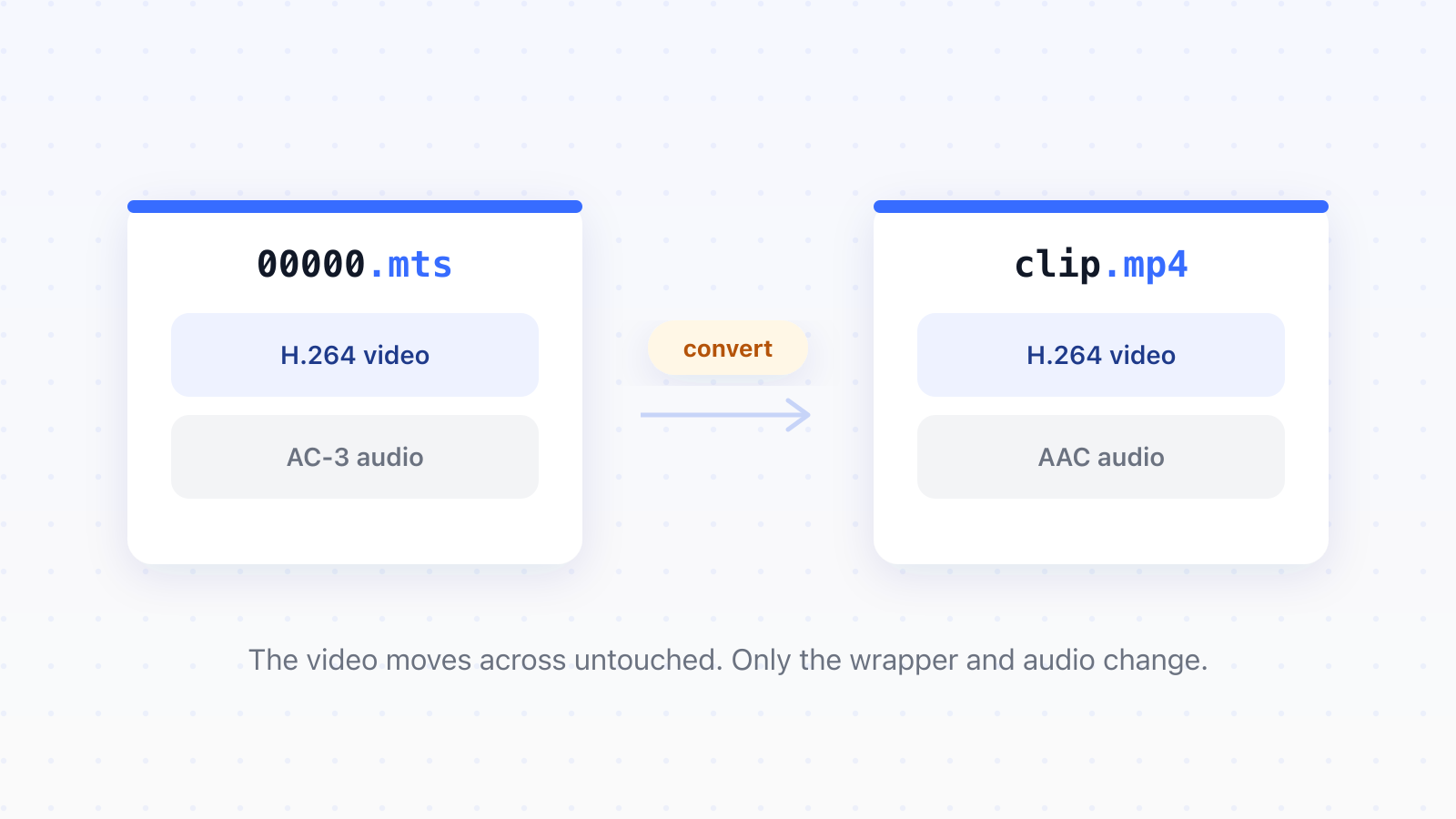
An MTS file is AVCHD camcorder footage, and the video inside it is ordinary H.264, the same codec most MP4s use. That means converting MTS to MP4 is usually a repackaging job, not a rebuild: done properly, it takes seconds and loses nothing. Here's how to do it, and how to spot the two cases where a rebuild is the right call.
How to convert MTS to MP4
- Copy the whole PRIVATE or AVCHD folder off the camcorder's card.
- Open the convert MTS to MP4 online tool and add your .mts files.
- Pick MP4 as the output and start the conversion.
- Download the finished .mp4 files.
Our converter copies the H.264 video into the MP4 untouched and converts only the audio. We tested this with an 8-second clip: it converted in about nine seconds including the upload queue, and when we compared every frame of the output against the input, the pixels were identical.
There are free offline options too. VLC converts through Media, then Convert/Save, but its default MP4 profile re-encodes the video, so it's slower and costs a little quality. If you're comfortable in a terminal, ffmpeg can do the lossless version directly. This is the exact command we verified:
ffmpeg -i input.mts -c:v copy -c:a aac output.mp4
The -c:v copy part is the whole trick: it tells ffmpeg to move the video stream without touching it.
What is an MTS file?
An MTS file is AVCHD video, the recording format used by Sony and Panasonic camcorders. Inside is standard H.264 video with AC-3 or PCM audio. Nothing about your footage is broken or unusual; it's the wrapper that most players and phones don't recognise.
AVCHD was designed as a recording format for cameras, not a sharing format for people, which is why software that plays H.264 all day still balks at the .mts wrapper around it. The fix is to change the wrapper, and that's exactly what the conversion does. You'll also run into the same footage wearing an .m2ts extension: it's the identical format, just the spelling used on Blu-ray discs and by some copying software.
Why the conversion is usually lossless
Because the video doesn't change, only the box around it does. A converter that understands this copies the H.264 stream byte for byte into the MP4 container, a step called remuxing. The video never gets decoded, so there's nothing to lose, and the job is fast because bytes are copied rather than processed.
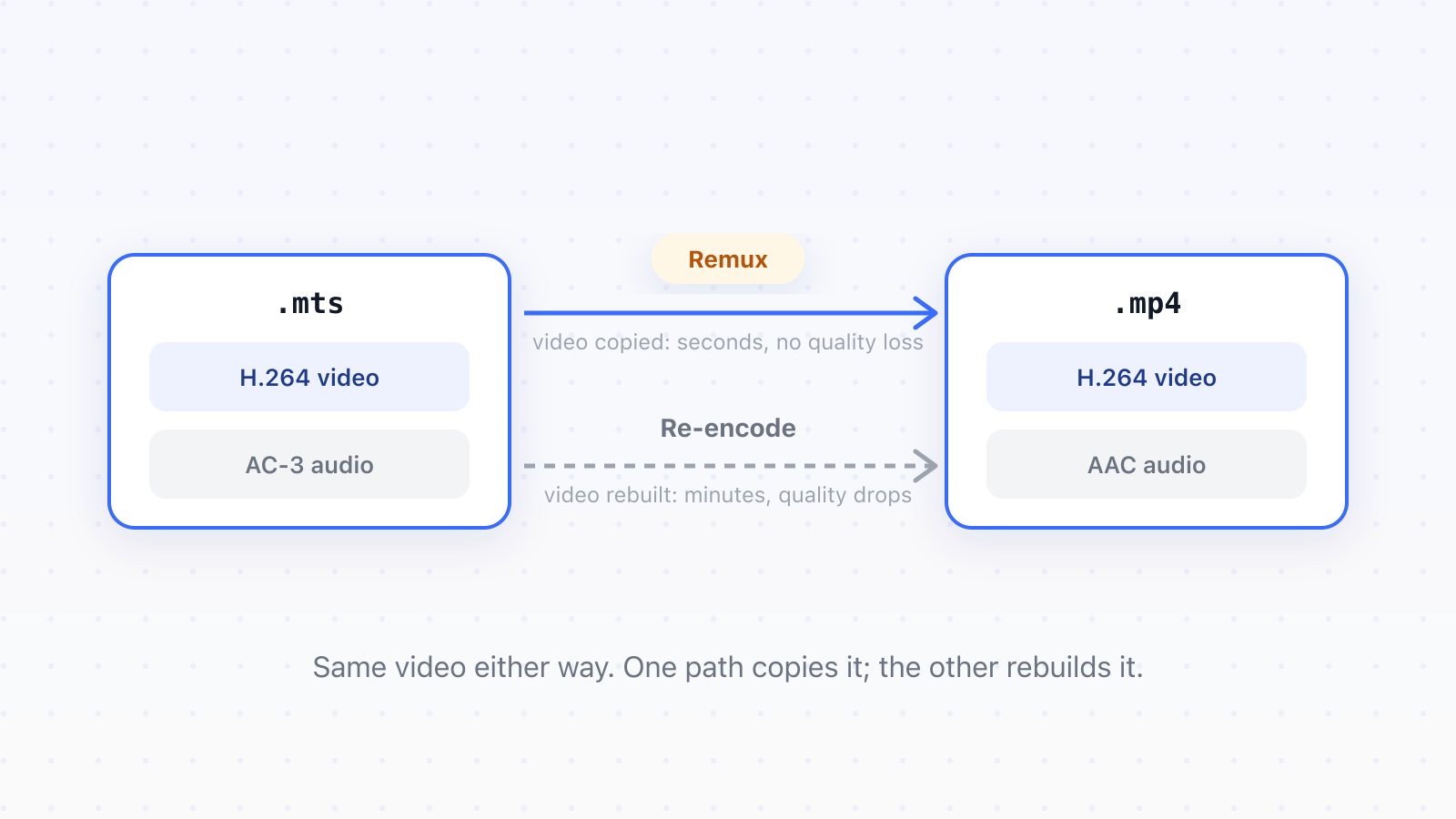
You'll sometimes read that converting MTS to MP4 shrinks the file. That's a tell, not a feature. In our test, the remuxed output was 4.24 MB from a 4.52 MB input, nearly the same size, because it's the same video. A full re-encode of the same clip came out at 2.84 MB, and its frames no longer matched the original pixel for pixel. If your output is dramatically smaller, your video was rebuilt, and something was lost.
This is the same wrapper-versus-contents distinction that decides between renaming a file and converting it. The extension is the label; the streams inside are what matter.
Copy the whole card before you convert anything
One camcorder habit causes most of the pain people blame on the format. AVCHD splits long recordings into chunks of about 2 GB, a limit inherited from the card's file system, and the folder structure around them records how the pieces join back together. Drag three lone .MTS files off the card and you've orphaned three fragments of one recording.
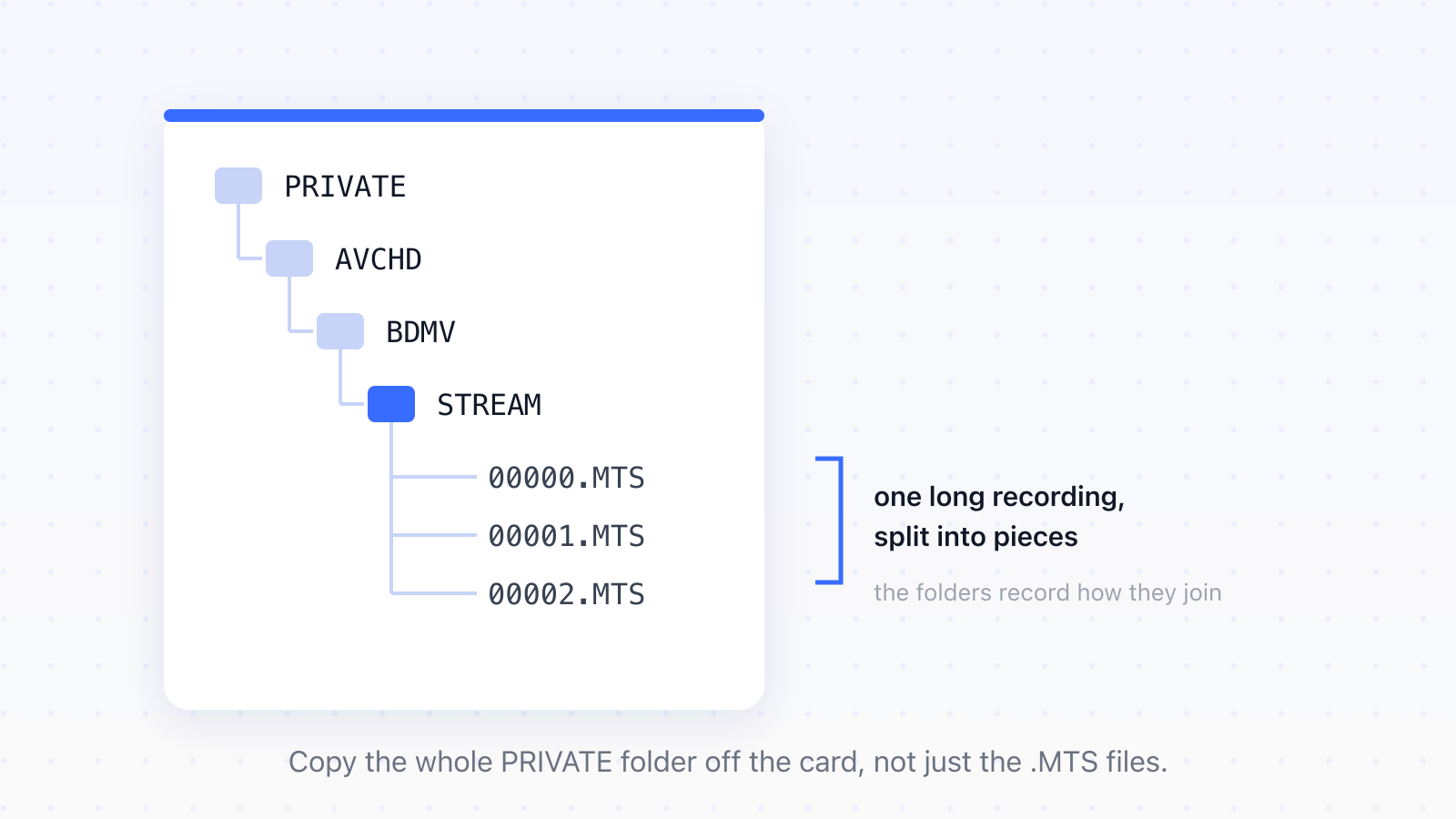
So copy the entire PRIVATE folder off the card before you convert anything. Your editing software can then rejoin the pieces properly, and you'll still have the original structure if anything goes wrong.
When you do need a real re-encode
Two honest exceptions. The first is audio: camcorders record AC-3, and browsers like Chrome and Firefox can't decode it, so a clip headed for the web needs its audio converted to AAC even while the video is copied untouched. That's a tiny job compared to video, and our converter makes the audio switch automatically.
The second is interlaced footage. Older camcorders recorded interlaced video, which shows comb-like lines on fast motion when played on modern screens. Fixing that means deinterlacing, and deinterlacing rebuilds every frame, so it's a genuine re-encode with a genuine quality cost. It's worth it for interlaced footage and pointless for everything else.
Just need to play the file, not share it?
Then you may not need a conversion at all. VLC plays .mts files directly, wrapper and all, on Windows and Mac. Convert when the clip has to work beyond your own machine: in a browser, on a phone, in an editor that refuses the wrapper, or on someone else's computer. If it's just you, watching, VLC is the two-minute answer.
Convert, don't rebuild
Your camcorder footage is already good H.264. The MP4 you want is the same video in a friendlier box, so the conversion should be fast and lossless, and the only real decisions are the audio and whether the footage is interlaced. The same logic applies to other camcorder and phone formats: check what's inside the box before you rebuild it.
Updated
- MTS
- AVCHD
- MP4
- camcorder
- convert