
How to compress a PDF without wrecking the images
Big PDFs are almost always photos stored at print resolution. We compressed an 18.40 MB test file to 1.58 MB with our own tool and measured every setting; here's how to shrink yours without ruining scans or print quality.
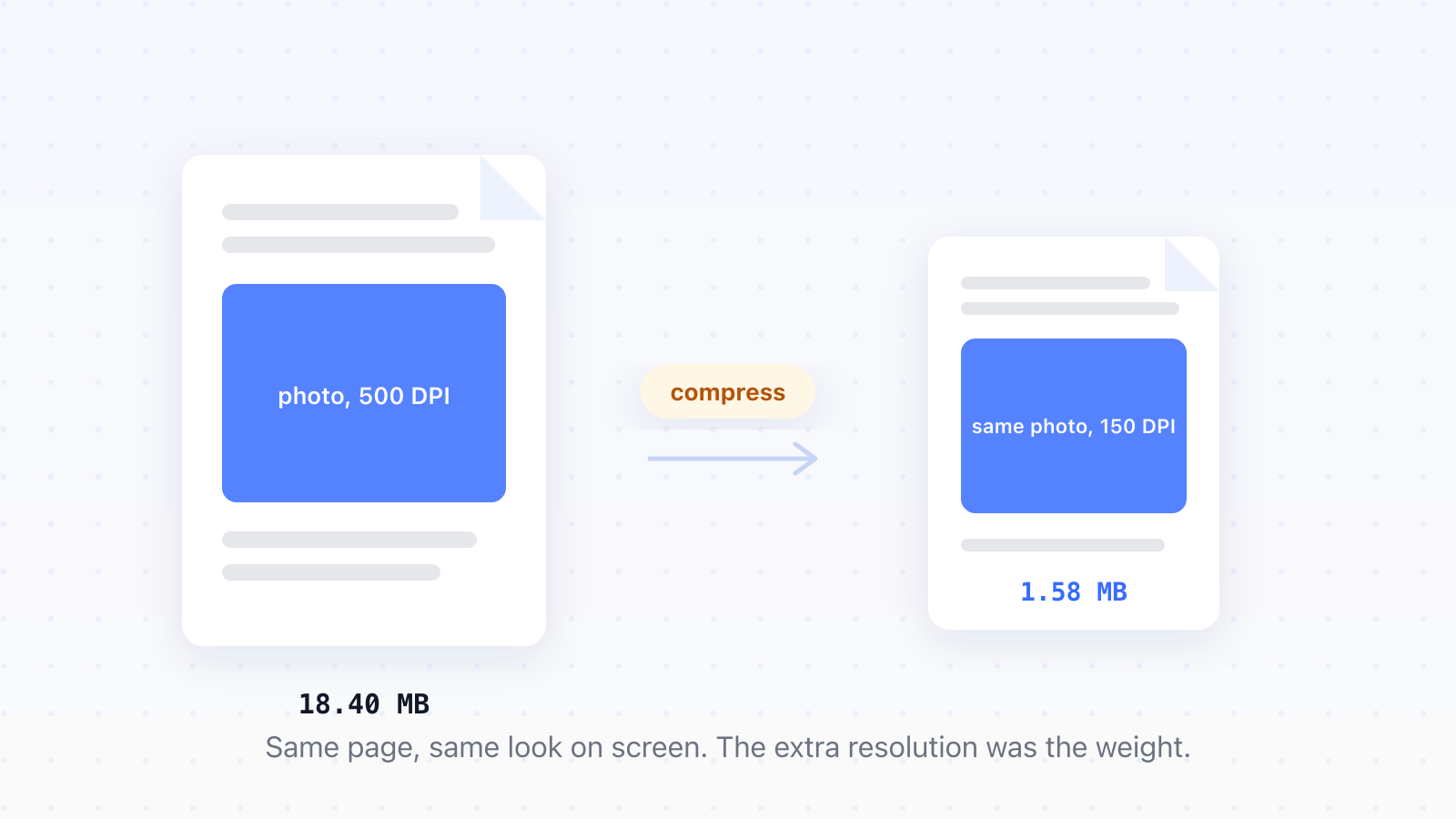
A huge PDF is nearly always photographs stored at print resolution inside a document that will only ever be read on a screen. Compressing it means shrinking those photos down to what a screen can show anyway: in our test, that turned an 18.40 MB file into 1.58 MB with no visible change. Text was never the problem. We measured a full page of dense prose at 1.8 KB, so when a PDF is big, something inside it is an image.
How to compress a PDF
- Open the PDF compressor and add your files, up to 20 at once.
- Pick a level: smaller for screens and email, or print quality to keep every pixel.
- Compress, then download the results.
- Check the size. A photo-heavy PDF should come out dramatically smaller.
Two limits worth knowing up front. The tool takes up to 20 files per batch, and it rejects password-protected PDFs, so remove the password first and compress after.
On a Mac there's also a free built-in route: Preview's Export dialog has a Reduce File Size filter. It's a one-click shrink with no choice of how far it goes, which is fine for a quick email attachment and limiting for anything else.
Why your PDF is so large
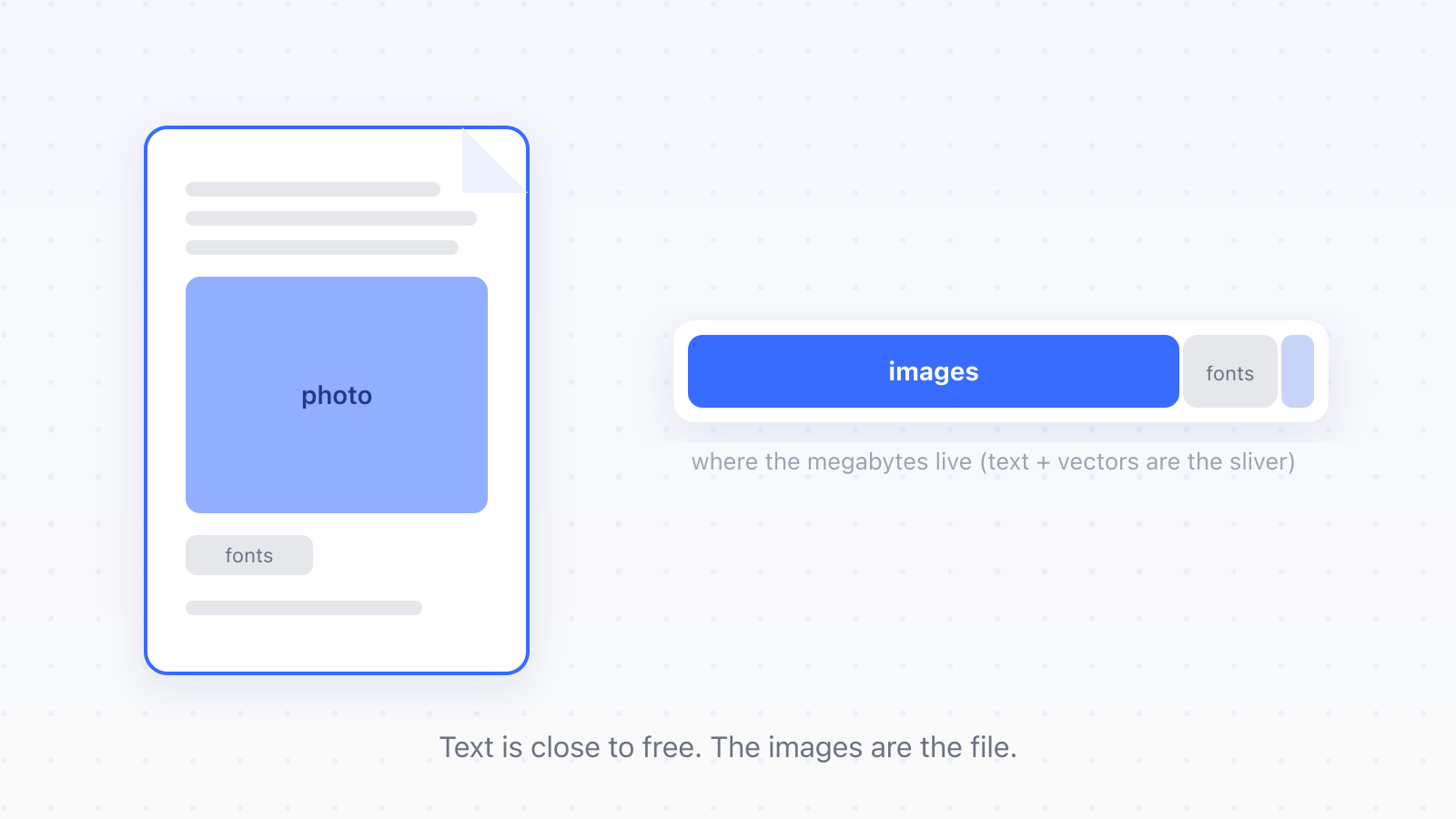
A large PDF almost always means images stored at higher resolution than anyone will see. Photos come off a camera at roughly 500 DPI for a letter-size page; screens display about 96. Text and vector graphics are close to free, and scanned pages count as images even when they look like text.
- Photos and screenshots are the usual culprit, especially straight from a phone or camera.
- Scanned pages are full-page images. A 40-page scan is 40 photographs wearing a document costume.
- Embedded fonts cost a few hundred kilobytes. Leave them alone; they're what keeps the layout intact.
- Text and vector shapes barely register. Compressing a text-only PDF achieves almost nothing.
Pick the level by where the PDF is going
Compression levels are really a decision about destination. A stronger setting downsamples images to screen resolution for the smallest file; the default balances quality and size for reading and email; a print setting keeps images at 300 DPI for paper. We ran one four-page, photo-heavy test file through all three with our own tool and measured the results.
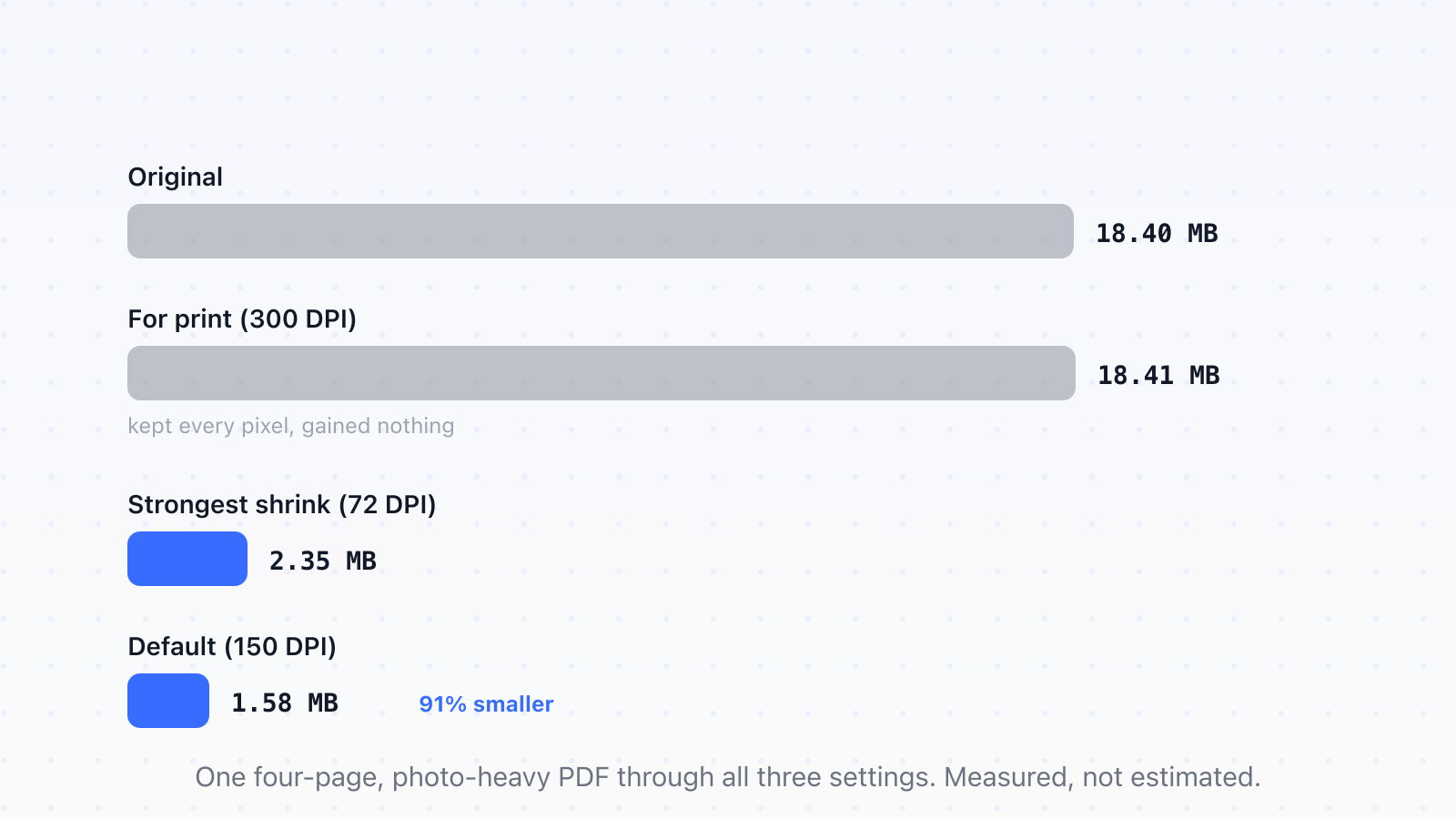
The default came out at 1.58 MB, 91% smaller. The strongest setting produced 2.35 MB; on this file the default actually beat it, so the harshest option isn't automatically the smallest. And at the print setting, the compressor produced a file a touch larger than the input, because keeping every pixel left nothing to save. Our tool now catches that case and hands back your original untouched, with a note that it was already optimized. If you see that note, the answer isn't a stronger setting; your PDF simply wasn't image-heavy enough to shrink.
The resolution rule: 150 DPI for screens, 300 for print
The arithmetic is simple. A phone photo arrives around 4,000 pixels wide, which works out to roughly 500 DPI on a letter-size page. Print shops want 300. Screens show about 96. So a document headed for screens can drop to 150 DPI, comfortably above what any monitor renders, and lose most of its weight without a visible difference. The saving comes from throwing away resolution no screen was going to display.
That's the whole rule: 150 DPI for anything read on screen, 300 if it will be printed. Above 300 you're storing detail no device reproduces.
When compressing makes it worse
Scanned documents are the big one. Letter edges are exactly what image compression handles worst, so an aggressively compressed scan turns soft and smudgy while a compressed photo just looks slightly less crisp. Keep scans at 300 DPI, which means choosing the print-quality setting and accepting the larger file. Legibility is the point of a scan; size is negotiable.
Double compression is the other trap. Compressing an already-compressed PDF stacks artifacts on artifacts, and quality falls faster than size does. If a file is already blocky, go back to the original document and export it once, properly.
And if your PDF is mostly text, there's simply not much to compress. When only one section matters to the recipient, splitting out just the pages you need beats compressing the whole thing.
Keep the images, lose the weight
Photos at print resolution are the weight, so downsample for screens and keep 300 DPI when paper or scans are involved. A file that barely shrinks was never image-heavy to begin with. Merging, splitting and the compressor all live in the rest of the PDF toolkit.
Updated
- compress
- file size
- images
- DPI