
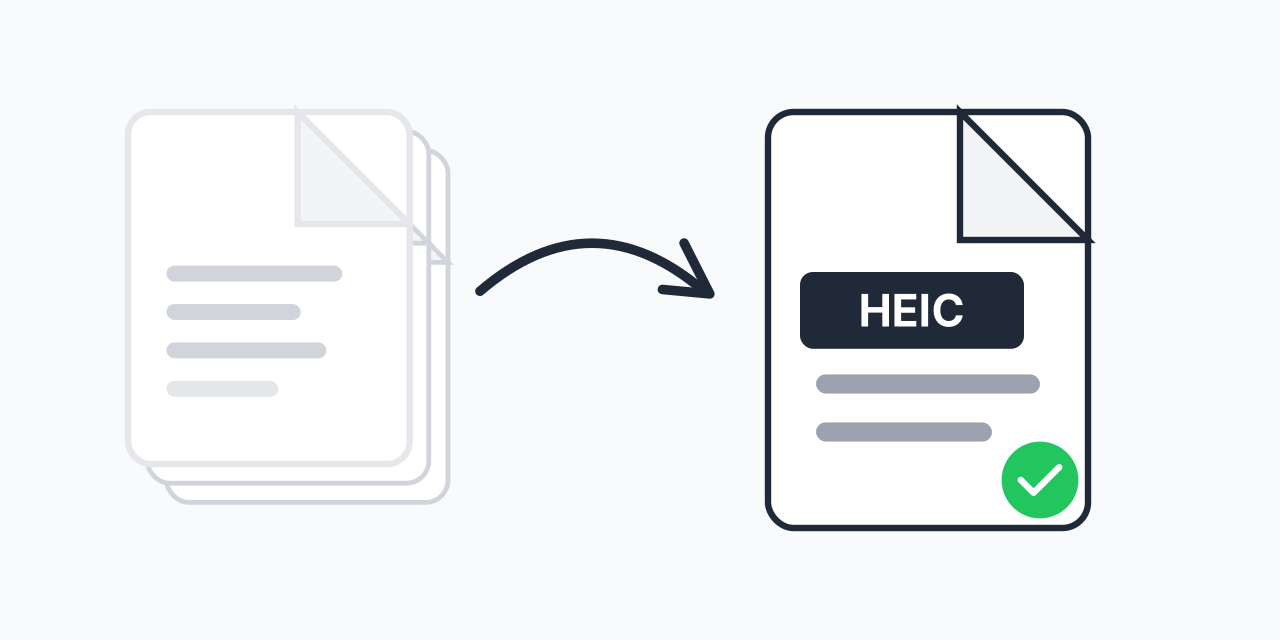
What is HEIC?
HEIC (High Efficiency Image Container) is Apple's default photo format on iPhones and iPads since iOS 11 (2017). It stores images using HEVC (H.265) compression, delivering better quality than JPG at roughly half the file size.
For Apple users, HEIC is seamless-photos look great and take less storage. The problem? Windows, Android, and many websites can't open HEIC files. When you share iPhone photos, recipients often get error messages instead of images.
Converting HEIC to JPG solves this instantly. The resulting JPG works everywhere-Windows, Android, web uploads, email, social media, and any device or platform.
Why Convert HEIC Files?
HEIC's compatibility issues affect nearly everyone who shares iPhone photos:
- Windows can't open HEIC - Windows Photo Viewer shows errors; you need special codecs or conversion
- Android doesn't support HEIC - Android phones can't view HEIC photos from iPhone
- Website uploads fail - Many sites only accept JPG, PNG, or GIF uploads
- Email previews don't work - Recipients see attachments they can't open
- Social media rejection - Some platforms don't process HEIC uploads
- Print services need JPG - Photo printing services require JPG or PNG
- Older Mac apps struggle - Software before 2017 doesn't recognize HEIC
Converting to JPG creates universally compatible photos that work everywhere.
HEIC vs JPG Quality
For typical photo sharing, you won't see quality differences:
- HEIC advantage: 40-50% smaller files at equivalent quality
- JPG advantage: Works everywhere, universal compatibility
- Visible difference: Negligible for social media, email, and normal viewing
- Professional use: Keep HEIC originals for maximum quality; export JPG for sharing
For most users, converting HEIC to JPG for sharing is the practical choice. Keep HEIC originals on your iPhone for storage efficiency.
Convert HEIC to Other Formats
HEIC to JPG
The most common and recommended conversion. JPG works on every device, every platform, every application. Quality difference is imperceptible for typical photo use. This solves 99% of HEIC compatibility problems.
HEIC to PNG
Choose PNG when you need lossless quality or transparency (if the HEIC has it). PNG files are larger than JPG but preserve exact quality. Good for screenshots or images you'll edit extensively.
HEIC to PDF
Create documents from iPhone photos. Combine multiple HEIC images into a single PDF for sharing or archiving. Useful for document scans taken with iPhone.
HEIC to TIFF
For professional printing workflows that require TIFF format. Preserves maximum quality for large prints.
HEIC to WebP
Modern web format with excellent compression. Good for website use while maintaining small file sizes.
Convert to HEIC from Other Formats
Converting to HEIC is less common but useful for:
JPG to HEIC
Reduce storage on Apple devices. HEIC is roughly 50% smaller than JPG at equivalent quality. Useful if you're moving photos onto an iPhone or iPad.
PNG to HEIC
Compress large PNG files for Apple device storage while maintaining good quality.
Note on HEIC Creation
Most people convert FROM HEIC, not TO it. HEIC only makes sense if your recipients are on Apple devices. For sharing, JPG remains the universal standard.
HEIC Technical Specifications
- Full name: High Efficiency Image Container
- Developer: MPEG (Moving Picture Experts Group), adopted by Apple
- Introduced: iOS 11 (September 2017)
- File extensions: .heic, .heif
- MIME type: image/heic, image/heif
- Compression: HEVC (H.265), lossy or lossless
- Color depth: Up to 16-bit
- Transparency: Supported
- Typical savings: 40-50% smaller than equivalent JPG
HEIC Compatibility
Devices That Support HEIC
- iPhone (iOS 11+)
- iPad (iOS 11+)
- Mac (macOS High Sierra+)
- Windows 10/11 (with HEVC codec installed)
- Some newer Android devices (Android 9+, varies by manufacturer)
Devices That DON'T Support HEIC
- Windows without HEVC codec (most default installations)
- Older Android phones
- Linux (most distributions)
- Older Mac computers
- Most web browsers (can't display HEIC directly)
- Many photo editing applications
How to Convert HEIC Files
- Upload your HEIC files - Drag and drop from your computer. Batch upload multiple photos at once.
- Select your output format - JPG for universal compatibility (recommended), PNG for lossless quality.
- Download converted photos - Get JPG files that open anywhere, on any device.
Conversion is instant. Your photos are processed securely and not stored on our servers.
Stop iPhones from Taking HEIC Photos
If you'd rather have JPG directly from your iPhone:
- Open Settings on your iPhone
- Go to Camera
- Tap Formats
- Select "Most Compatible" instead of "High Efficiency"
Your photos will now save as JPG. Note: files will be larger and take more storage.