
ChangeMyFile - Free Online File ConverterChangeMyFile
Trusted by thousands of users worldwide

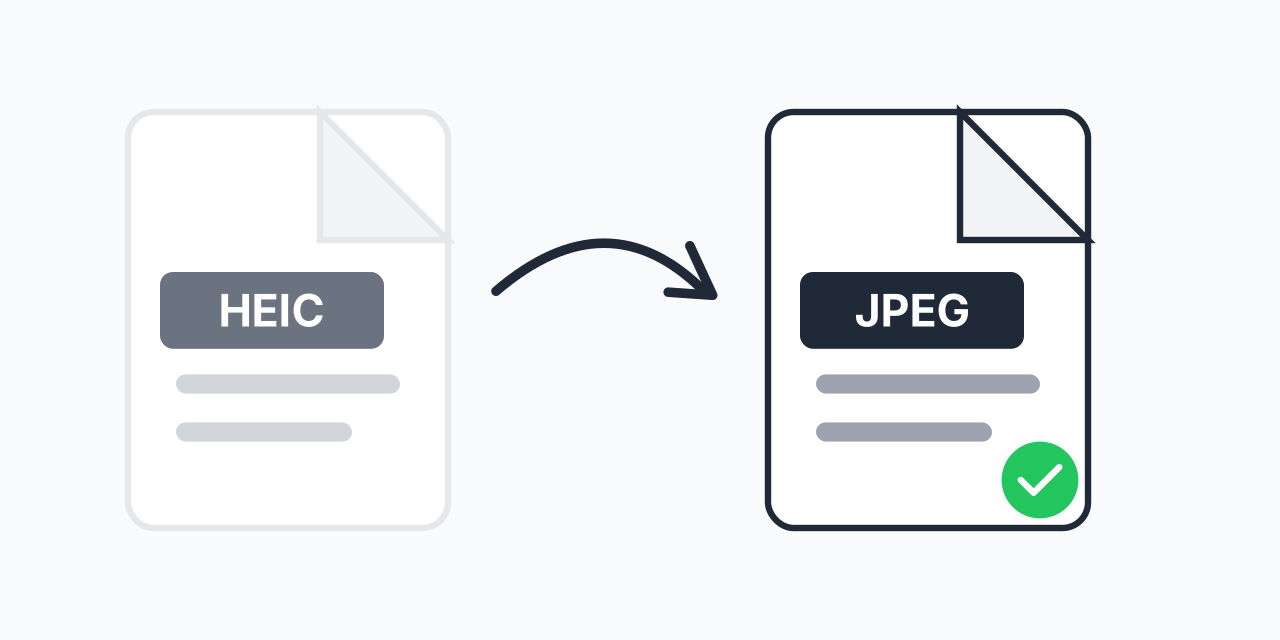
Convert HEIC to JPEG – iPhone Photos for Everyone

Convert iPhone HEIC photos to JPEG for Windows and Android compatibility.

Step 1: Upload your files

You can also Drag and drop files.

Step 2: Choose format
Step 3: Convert files

Read Terms of use before using

Share:fXin@
500+ Formats
Lightning Fast
100% Secure
Always Free
Cloud Processing

iPhone Photos Won't Open on Windows?

Apple's iPhones save photos in HEIC format by default. While efficient, HEIC files often won't open on Windows PCs, older Macs, and many websites reject them for uploads.

Converting to JPEG solves this instantly. JPEG is the universal image format—every device, browser, application, and website handles JPEG without issues.

How to Convert HEIC to JPEG

  1. Upload your HEIC file – Select photos from your iPhone or cloud storage
  2. Confirm JPEG output – JPEG ensures universal compatibility
  3. Download your file – Get your photo ready for any use

Conversion happens in your browser—fast, private, no app installation needed.

Why iPhone Uses HEIC

HEIC (High Efficiency Image Container) uses better compression than JPEG:

  • 50% smaller files at equal quality
  • Better color depth for HDR content
  • Supports Live Photos and depth data

The tradeoff is compatibility. JPEG has been the standard for 30 years; HEIC is still gaining support.

When You Need JPEG

Windows Computers

Windows 10/11 can support HEIC with paid codec extensions, but many users can't open these files. JPEG works immediately on every Windows PC.

Website Uploads

Facebook, many job applications, government forms, and countless websites only accept JPEG. HEIC uploads fail or are rejected.

Email Attachments

Recipients on older devices or non-Apple systems may not view HEIC attachments. JPEG guarantees everyone can see your photos.

Printing Services

Photo printing services universally accept JPEG. Some don't support HEIC, leaving you unable to print your photos.

Quality Comparison

HEIC and JPEG are both lossy formats. During conversion:

  • Quality preserved – High-quality JPEG encoding maintains visual fidelity
  • File size – JPEG will be slightly larger than HEIC at equal quality
  • Compatibility – JPEG works everywhere HEIC doesn't

For viewing and sharing, the quality difference is imperceptible to most users.

Alternative: HEIC to PNG

If you need lossless quality or transparency, consider HEIC to PNG conversion. PNG creates larger files but preserves exact quality. For most photo sharing, JPEG is more practical.

Batch Convert Your Photo Library

Transferred hundreds of photos from your iPhone? Upload multiple HEIC files and convert them all to JPEG in one batch. Prepare your entire photo collection for universal use.

Works on Any Device

Convert HEIC to JPEG in any browser:

  • Windows, Mac, Linux, Chromebook
  • Chrome, Firefox, Safari, Edge
  • iPhone, iPad, Android

Pro Tip

If you regularly transfer photos to Windows, set iPhone to 'Most Compatible' mode (Settings → Camera → Formats). This saves directly as JPEG, avoiding the need to convert later.

Common Mistake

Deleting HEIC originals before checking JPEG quality. Some photos with HDR or wide color gamut may lose subtle details. Verify before deleting.

Best For

Making iPhone photos compatible with Windows computers, uploading to websites that don't accept HEIC, sharing photos with non-Apple users, and printing services.

Not Recommended

Don't convert if you're staying in the Apple ecosystem. HEIC works fine on Mac, iPhone, and iPad. Convert only when sharing with non-Apple devices or platforms.

Frequently Asked Questions

HEIC (High Efficiency Image Container) is Apple's default photo format since iOS 11. It provides better compression than JPEG, saving storage space, but has limited compatibility outside Apple devices.

Windows doesn't include HEIC codecs by default. Microsoft offers paid HEIF extensions, but many users lack them. Converting to JPEG bypasses this compatibility issue entirely.

HEIC offers better compression (smaller files at same quality) and supports advanced features. JPEG has universal compatibility. HEIC is newer and better technically; JPEG works everywhere.

Minimal quality loss with proper conversion. Both are lossy formats. A high-quality JPEG looks virtually identical to the HEIC source. Most users notice no difference.

Yes, they're identical formats. JPEG and JPG are interchangeable file extensions for the same format. Some systems use .jpeg, others use .jpg—same thing.

Yes. Settings → Camera → Formats → Most Compatible. This saves photos as JPEG directly, but uses more storage. Converting HEIC to JPEG later gives you the storage benefits.

Many websites don't support HEIC format. Their upload systems expect JPEG or PNG. Converting to JPEG before uploading ensures your photos are accepted.

Yes. Upload multiple HEIC photos and convert them all to JPEG simultaneously. Perfect for converting entire photo transfers from your iPhone.

Quick access to the most commonly used file conversions.