
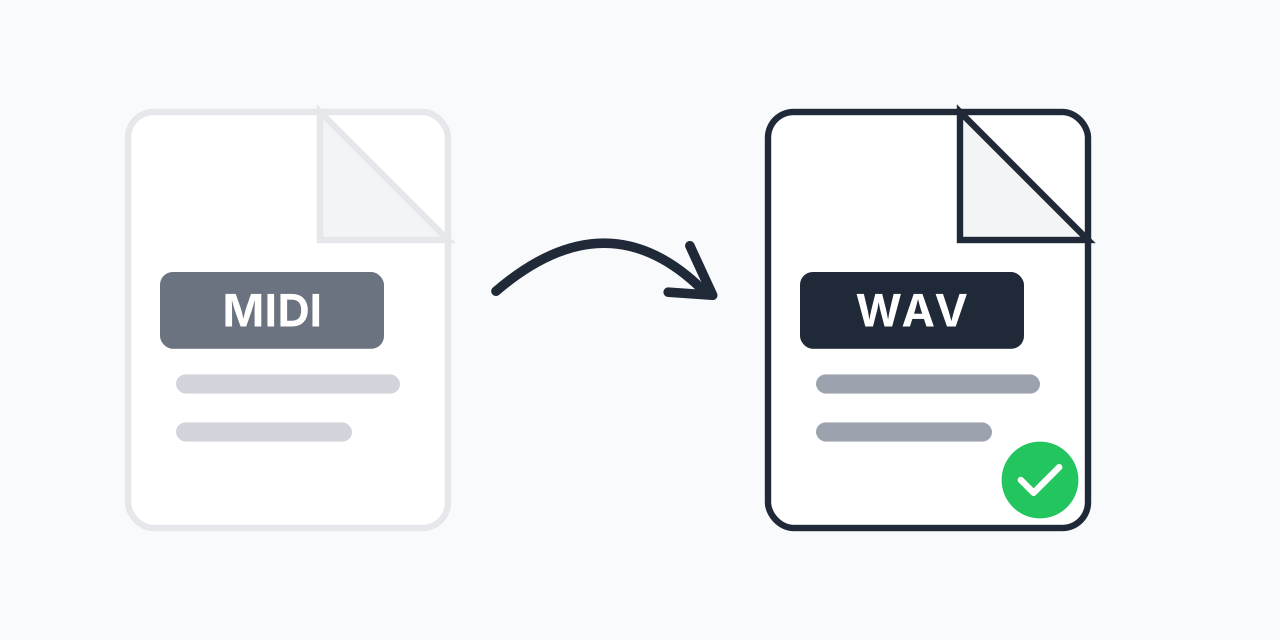
Audacity Can't Open a MIDI, and That's Normal
Audio editors edit audio, and a MIDI file doesn't contain any. It holds note instructions that a synthesizer turns into sound at playback time. Audacity and most editors like it can't perform those instructions, so the standard workflow is to render the MIDI to a real audio file first, then edit that.
WAV is the file to render to. It's uncompressed, every editor on every platform opens it, and nothing gets thrown away before you start working.
What the Render Gives You
We perform your file through FluidSynth with the FluidR3 General MIDI soundfont and write the output as uncompressed PCM audio in a WAV container. Loudness is normalized by default, so you won't open the file and find the waveform hugging the floor.
It's also fast. The largest file in our tests, 201.55 seconds of music, rendered and encoded in 5.37 seconds. You'll spend longer naming the track than waiting for it.
How to Convert a MIDI File to WAV
- Drop the .mid file on the uploader.
- Choose WAV as the target format.
- Download the WAV and open it in your editor.
Conversion runs on our servers; your browser uploads the MIDI and fetches the finished WAV.
Fix the Notes Before You Render
Once the music is audio, a wrong note is baked into the waveform, and moving it means surgery on a recording. In the MIDI it's still an instruction you can drag. Make every note, tempo, and instrument change in a MIDI editor first, and treat the render as the last step before audio work: trimming, fades, mixing, vocals.
Why Not Just Convert to MP3 and Edit That
Because you'd compress twice. MP3 in, edit, MP3 out puts the sound through lossy encoding at both ends. Rendering to WAV keeps the chain clean; the only lossy step happens once, at your final export, if you use one at all. If you're not editing and just want a listening copy, MIDI to MP3 is the shorter path.