
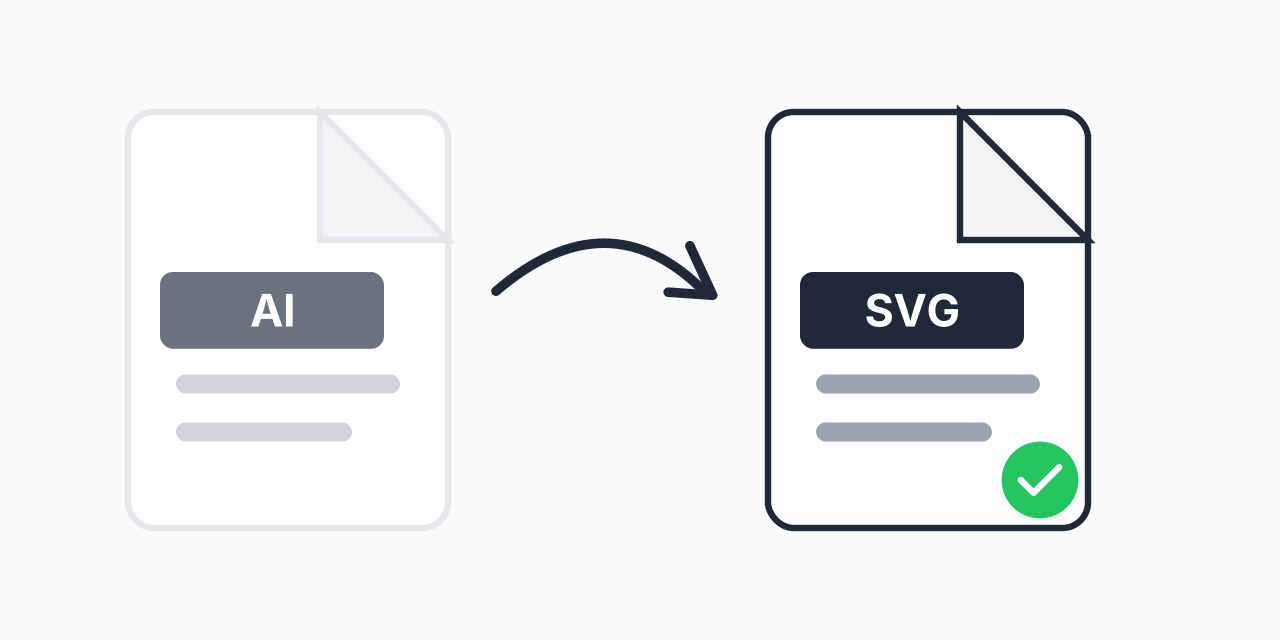
Stuck with AI Files You Cannot Open?
You received an AI file but Adobe Illustrator costs over $250 per year. Or you have your own AI files and need to share them with someone who does not have Illustrator. Either way, the proprietary format is blocking your workflow.
Converting to SVG solves this instantly. SVG is an open standard that works in any browser, free vector editors like Inkscape, and every modern design tool. Your vectors become accessible to everyone.
How to Convert AI to SVG
- Upload your AI file - Drag and drop or click to select your Adobe Illustrator file
- Confirm SVG output - SVG is the universal vector format for web and design
- Download your SVG - Ready to use on websites or edit in any vector software
No Adobe subscription needed. No software to install. Convert and download in seconds.
Why Convert AI to SVG?
AI files are locked to Adobe's ecosystem. SVG opens your vectors to the entire world:
- Browser compatible - SVG displays directly in Chrome, Firefox, Safari, and Edge
- Edit in free software - Inkscape, Figma, Canva, and dozens of other tools support SVG
- Web optimized - SVG is the standard format for logos, icons, and graphics on websites
- Search engine readable - SVG uses XML text, so Google can index your vector content
- Scalable - SVG stays perfectly sharp at any size, from favicon to billboard
SVG has become the web standard because it combines small file sizes with infinite scalability.
Common Use Cases
Web Development
Your designer delivered logos and icons in AI format, but your website needs SVG. Convert once and your graphics are ready for responsive design with CSS styling.
Editing Without Illustrator
You need to modify a logo or illustration but do not have Adobe Illustrator. Convert to SVG and open in Inkscape (free), Figma, or any vector editor.
Cricut and Vinyl Cutting
Cutting machines often prefer SVG over AI. Convert your designs for seamless import into Cricut Design Space or Silhouette Studio.
Sharing with Clients
Not everyone has Adobe software. Send SVG files that clients can view in their browser and open in whatever design tools they use.
AI vs SVG: Understanding the Difference
Both are vector formats, but they serve different purposes:
- Choose SVG when: You need web graphics, want to edit in non-Adobe software, or need to share with people who lack Illustrator
- Keep AI when: You are working within Adobe Creative Cloud and need Illustrator-specific features like editable text, complex effects, or artboards
AI is a working format for designers using Adobe. SVG is the delivery format for the web and cross-platform editing.
What Converts and What Does Not
Most vector elements convert cleanly:
- Paths and shapes - Convert perfectly to SVG
- Solid colors and gradients - Full support in SVG
- Basic strokes - Width, color, and style preserved
- Groups - Layer organization maintained
Some Illustrator-specific features may flatten or simplify:
- Complex effects - Shadows and glows may rasterize
- Live text - May convert to outlines
- Linked images - May embed or require separate handling
For best results, expand appearances and outline text in Illustrator before uploading if you have access to the software.
Batch Convert Multiple AI Files
Have a folder of AI files from a design project? Upload them all at once and convert your entire collection to SVG. Perfect for migrating assets to a new design system or preparing graphics for a website launch.
Works on Any Device
Convert AI to SVG right in your browser:
- Windows, Mac, Linux, Chromebook
- Chrome, Firefox, Safari, Edge
- Tablet and mobile devices
No software downloads. No plugins. Just upload and convert.