
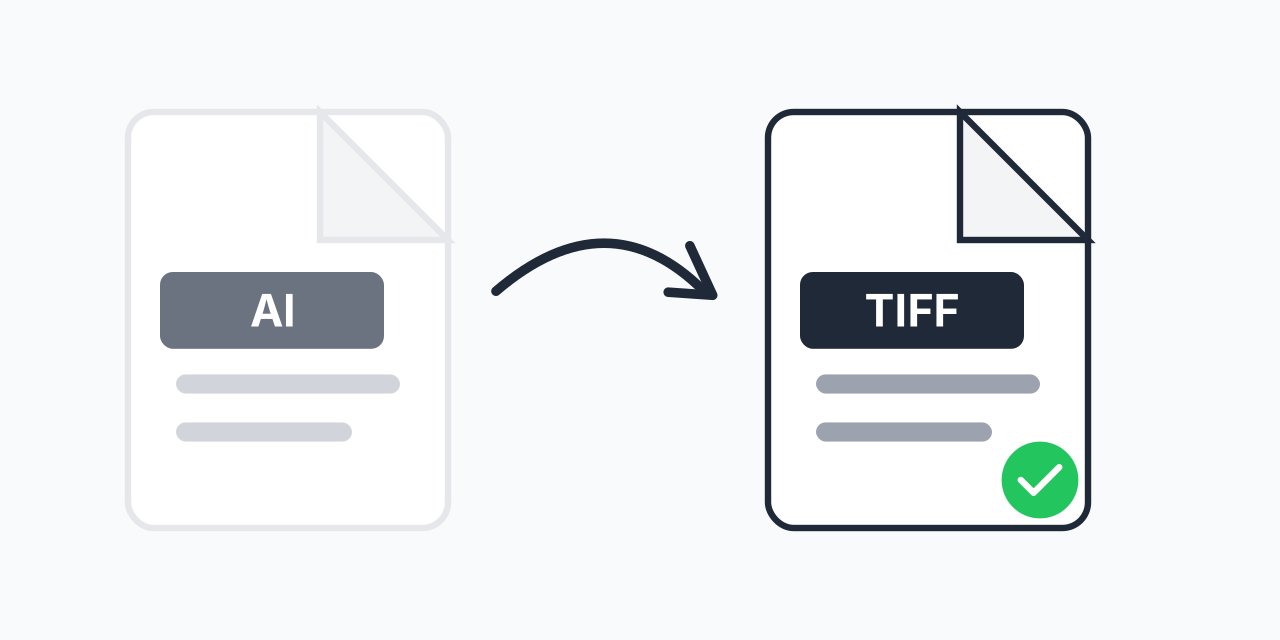
Need to Use Illustrator Files Without Illustrator?
You received an AI file-a logo, artwork, or design-but you don't have Adobe Illustrator. Or you need a print-ready raster version for a workflow that requires TIFF format.
Converting AI to TIFF transforms your vector artwork into a high-quality raster image that any image editor, print shop, or publishing application can use. No Adobe subscription required.
How to Convert AI to TIFF
- Upload your AI file - Select your Adobe Illustrator file
- Confirm TIFF output - TIFF provides lossless quality for professional use
- Download your image - Get a print-ready raster file instantly
Conversion happens in your browser. No software installation, no account needed.
Understanding the Conversion
AI files are vector graphics-mathematical paths that scale to any size without quality loss. TIFF is a raster format-a grid of pixels ideal for printing and image editing.
- AI (Adobe Illustrator) - Proprietary vector format, fully editable, requires Illustrator or compatible software
- TIFF (Tagged Image File Format) - Industry-standard raster format, lossless compression, universal print compatibility
When converting, vectors are rasterized at high resolution to preserve detail. The result is a TIFF that maintains your artwork's visual quality.
When You Need AI to TIFF
Print Production
Print shops often request TIFF files for production. Your logo or artwork in AI format needs to become a high-resolution raster for their workflow. TIFF's lossless compression ensures no detail is lost in the print process.
Publishing and Documentation
Technical documentation, medical imaging software, and publishing workflows standardize on TIFF. Converting your AI graphics makes them compatible with these systems.
Sharing Without Adobe Software
Colleagues or clients without Illustrator can't open AI files. TIFF is viewable in virtually every image application, from Windows Photos to Preview on Mac to professional editing tools.
Archiving Artwork
TIFF's lossless format makes it ideal for long-term archival. Convert your Illustrator designs to TIFF for preservation while keeping the original AI for future editing.
Why TIFF for Professional Use?
TIFF is the preferred format for professional imaging:
- Lossless compression - No quality degradation, unlike JPG
- High bit depth - Supports 16-bit color for demanding workflows
- Layer support - Can preserve layers for advanced editing
- CMYK compatibility - Native support for print color spaces
- Universal acceptance - Every professional application reads TIFF
For web use, consider AI to JPG or AI to PNG for smaller file sizes.
TIFF vs Other Formats from AI
- Choose TIFF when: You need print-quality output, lossless compression, or professional publishing compatibility
- Choose JPG when: File size matters more than perfect quality-web use, email, social media
- Choose PNG when: You need transparency for web graphics or app icons
- Keep AI when: You need to edit the design later-vectors remain fully editable
Batch Convert Multiple AI Files
Have a collection of Illustrator files to convert? Upload multiple AI files and convert them all to TIFF in one batch. Perfect for preparing an entire brand asset library or project folder for print production.
Works on Any Device
Convert AI to TIFF in your browser:
- Windows, Mac, Linux, Chromebook
- Chrome, Firefox, Safari, Edge
- iPhone, iPad, Android
No Adobe software required. No plugins to install.