
ChangeMyFile - Free Online File ConverterChangeMyFile
Trusted by thousands of users worldwide

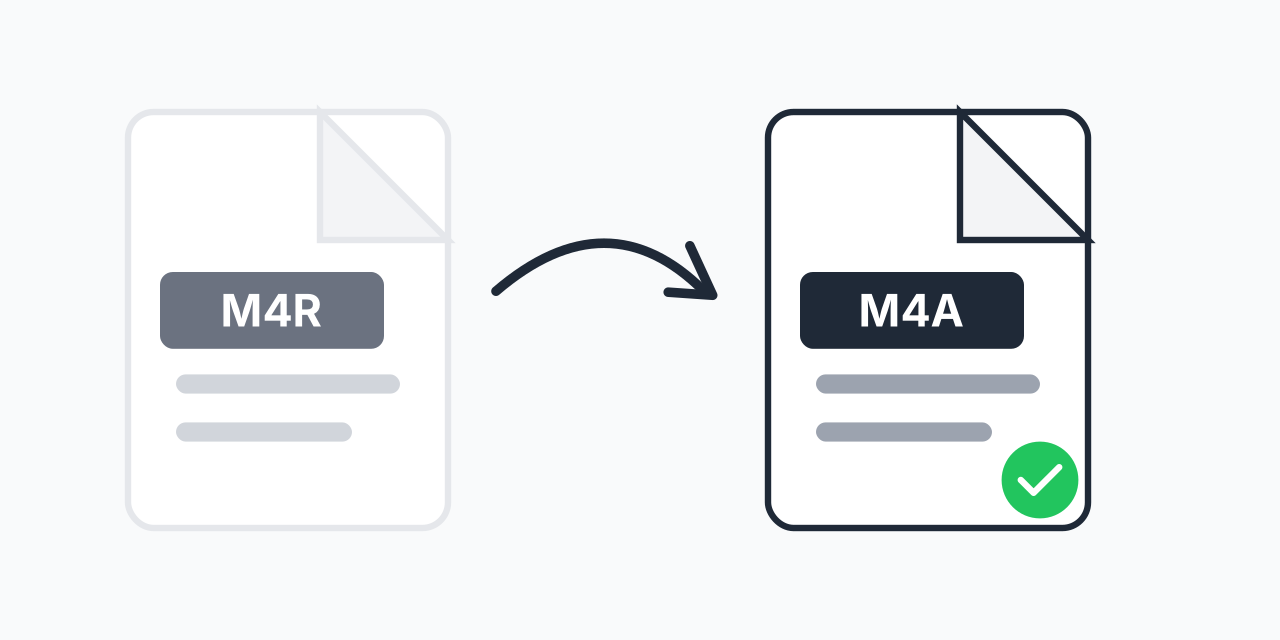
Convert M4R to M4A - Turn Ringtones Into Audio Files

Convert iPhone ringtones to standard M4A audio. Play them anywhere.

Step 1: Upload your files

You can also Drag and drop files.

Step 2: Choose format
Step 3: Convert files

Read Terms of use before using

Share:fXin@
500+ Formats
Lightning Fast
100% Secure
Always Free
Cloud Processing

Why Convert M4R to M4A?

M4R files are iPhone ringtones. They're locked to that specific purpose by Apple. If you have a ringtone you want to use as a regular audio file, you need to convert it to M4A first.

M4A is the standard MPEG-4 audio format that plays on virtually any device or media player. Converting your M4R files to M4A unlocks the audio for general use - add it to playlists, edit it in audio software, or play it on non-Apple devices.

How to Convert M4R to M4A

  1. Upload your M4R file - Drag and drop or tap to select your ringtone file
  2. Confirm M4A output - M4A is selected as your target format
  3. Download your audio - Your file is ready as a standard audio file

The conversion takes seconds. In our testing, even batch conversions of multiple ringtone files completed almost instantly since the formats are so closely related.

M4R vs M4A: What's the Difference?

Technically, M4R and M4A are nearly identical. Both use AAC audio encoding in an MPEG-4 container. The differences are:

  • File extension - .m4r for ringtones, .m4a for audio
  • Duration limit - M4R files are limited to 40 seconds for iPhone ringtones
  • iTunes/iPhone handling - iOS treats M4R files as ringtones only
  • Playback support - M4A plays in any media player, M4R may not

Because the underlying audio encoding is the same, conversion happens without any quality loss. Your audio stays exactly as it was.

Common Use Cases

Recover Audio from Custom Ringtones

You created a custom ringtone years ago from a song clip. Now you want that clip as a regular audio file. Converting to M4A format gives you a playable audio file.

Use Ringtones on Android

Switching from iPhone to Android? Your M4R ringtones won't work directly. Convert them to M4A first, then use them as notification sounds or ringtones on your Android device.

Edit Audio in Software

Most audio editing software prefers M4A over M4R. Convert first, then import into your preferred editor without compatibility issues.

Alternative Conversions

Need a different format instead of M4A? Consider these options:

  • M4R to MP3 - Maximum compatibility with all devices and players
  • M4R to WAV - Uncompressed audio for professional editing

M4A is ideal when you want to keep the same audio quality in a small file size. MP3 works better for older devices or specific software requirements.

Works in Any Browser

Our converter runs directly in your browser:

  • Windows, Mac, Linux, Chromebook
  • Chrome, Firefox, Safari, Edge
  • iPhone, iPad, Android

No software to install. No accounts to create. Just upload, convert, and download.

Pro Tip

Since M4R and M4A are technically the same format, you can often just rename the file extension from .m4r to .m4a manually. However, using a converter ensures proper metadata handling and works even when your operating system hides file extensions.

Common Mistake

Trying to import M4R files directly into music libraries or audio software. Most programs don't recognize the ringtone extension even though the audio inside is compatible. Convert to M4A first.

Best For

Recovering audio from custom ringtones, using iPhone ringtones on Android devices, or importing ringtone audio into editing software.

Not Recommended

If you want to keep using the file as an iPhone ringtone, stay with M4R. Converting to M4A means it won't appear in your ringtone list on iOS.

Frequently Asked Questions

M4R is Apple's ringtone format for iPhones. It's essentially an AAC audio file with a .m4r extension that iOS recognizes as a ringtone. M4R files are limited to 40 seconds maximum duration.

No. M4R and M4A use the same AAC audio encoding. Converting between them preserves the original audio quality completely since no re-encoding is needed.

Yes. M4A files play in the Music app on iPhone, iPad, and Mac. They also work in iTunes, Windows Media Player, VLC, and virtually any modern media player.

Many music players don't recognize the M4R extension because it's specifically for ringtones. Converting to M4A gives you a standard audio file that all players support.

Yes. Upload multiple M4R ringtone files and convert them all to M4A in a single batch. No need to convert one at a time.

Connect your iPhone to a computer and use iTunes or Finder to access your ringtones. You can also use file management apps to export M4R files from your device.

The file duration stays the same - conversion doesn't change the audio length. But M4A files have no duration restrictions, so you can extend or edit the audio after converting.

M4A offers better quality at the same file size as MP3. Use M4A for Apple devices and modern players. Use MP3 only if you need compatibility with very old devices or specific software that doesn't support M4A.

Yes, completely free with no limits. Convert as many M4R files to M4A as you need without registration or payment.

Quick access to the most commonly used file conversions.