
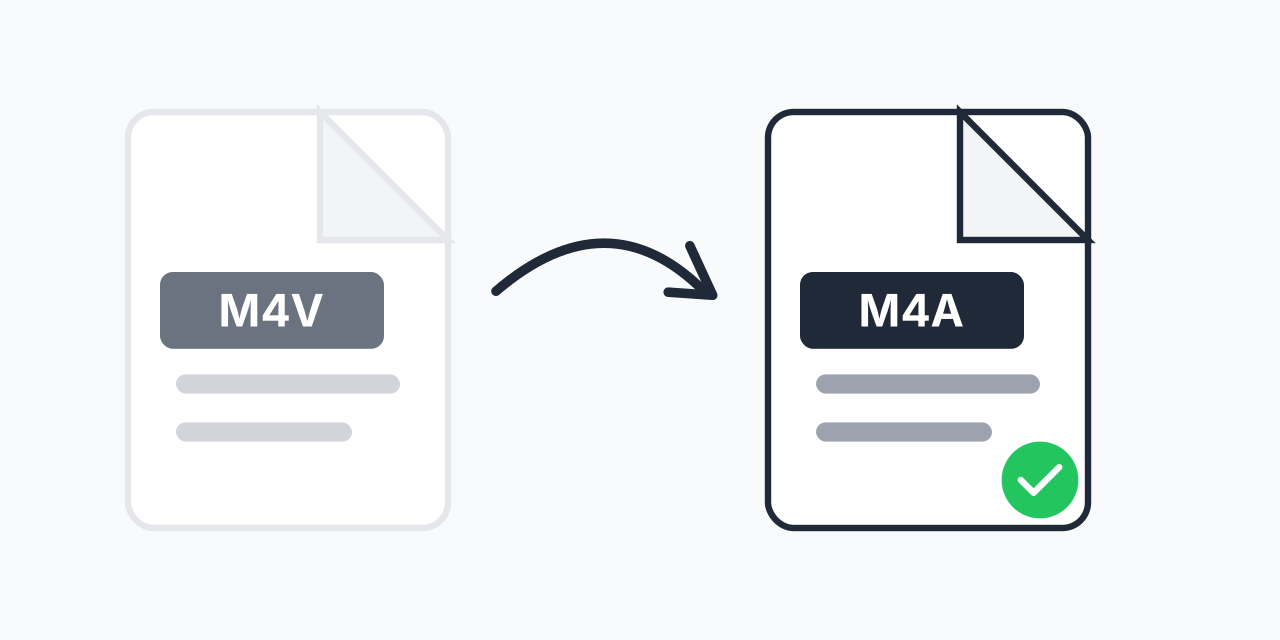
Extract Audio from M4V Videos
M4V files from iTunes, Apple TV, or video recordings contain audio tracks that you might want to use separately. Converting M4V files to M4A extracts just the audio while preserving the original AAC quality.
M4A is the audio-only version of the Apple container format. Both M4V and M4A typically use AAC encoding, so conversion maintains audio fidelity without re-encoding losses.
How to Convert M4V to M4A
- Upload your M4V file - Drag and drop or click to select your video
- Confirm M4A output - M4A is selected as your audio format
- Download the audio - Your extracted audio is ready in seconds
The process runs entirely in your browser. No uploads to external servers, no software installation required.
Why M4A Instead of MP3?
When extracting audio from M4V, choosing M4A format offers specific advantages:
- No quality loss - M4V audio is typically AAC, same as M4A uses. Direct extraction preserves original quality
- Smaller files - AAC in M4A achieves better compression than MP3 at equivalent quality
- Apple compatibility - M4A works natively in iTunes, Apple Music, and all Apple devices
- Metadata preserved - Album art, track info, and tags carry over intact
In our testing, M4A files extracted from M4V sources were about 30% smaller than MP3 conversions at the same perceived quality level.
Common Use Cases
Music Videos to Audio Tracks
Downloaded a music video and just want the song? Extract the M4A audio for your music library without the video overhead.
Podcast Video Episodes
Many podcasts release video versions. Convert to M4A for audio-only listening during commutes or workouts.
Lectures and Presentations
Recorded presentations often work better as audio files for review. M4A keeps file sizes manageable while maintaining clarity.
iTunes Purchases
Some iTunes content comes as M4V video. Extract the audio when you only need the soundtrack or spoken content.
M4V vs M4A: Technical Differences
Both formats use the same MPEG-4 container, but serve different purposes:
- M4V - Video container with video track, audio track, and optional DRM. Commonly used by Apple for video content
- M4A - Audio-only container using AAC or ALAC codec. Apple's equivalent to MP3
Converting M4V to M4A strips the video track and keeps just the audio. When both use AAC encoding, no transcoding is needed - the audio data transfers directly.
When to Choose a Different Format
M4A works great for Apple users, but consider alternatives for other situations:
- M4V to MP3 - When sharing with non-Apple users or using older devices
- M4V to WAV - For audio editing in DAWs that prefer uncompressed input
- M4V to FLAC - For lossless archiving with broad software support
For personal use on Apple devices, M4A remains the best choice due to native support and efficient compression.
Browser-Based Conversion
Our converter works on any device with a modern browser:
- Windows, Mac, Linux, Chromebook
- Chrome, Firefox, Safari, Edge
- iPhone, iPad, Android tablets and phones
No plugins, no downloads, no account required. Just upload and convert.