
Apple Videos Won't Play on Your Device?
You downloaded a video from iTunes or have M4V files from Apple, but your Android phone, Windows PC, or smart TV refuses to play them. M4V is Apple's video format, and many devices outside the Apple ecosystem simply don't support it.
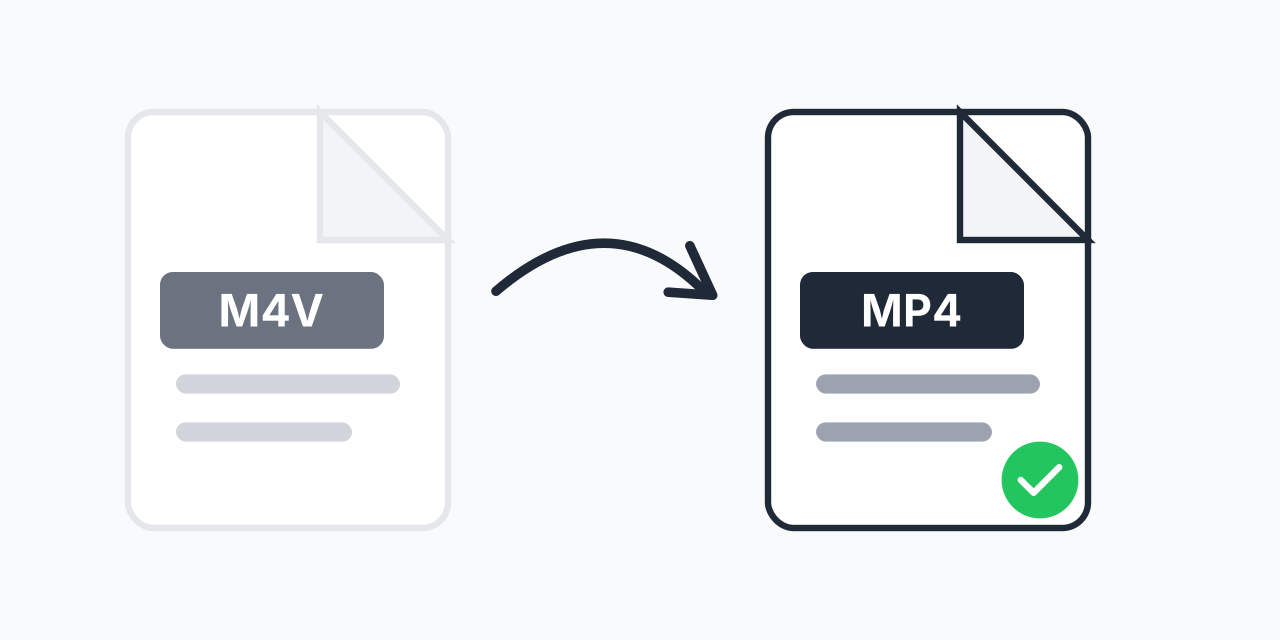
Converting M4V to MP4 solves this instantly. MP4 is the universal video format that plays on virtually every device, media player, and platform. Same video quality, but now accessible everywhere.
How to Convert M4V to MP4
- Upload your M4V file - Drag and drop or click to select your video
- Confirm MP4 output - MP4 is pre-selected as the universal format
- Download your video - Ready to play on any device
The entire process takes seconds. No software installation, no account required. Just convert and download.
M4V vs MP4: What's the Difference?
Both formats are technically similar - they're both based on MPEG-4 container technology. The key differences affect where you can play your videos:
- M4V - Apple's proprietary format, primarily used for iTunes content. Often includes DRM protection that restricts playback to Apple devices.
- MP4 - Universal standard supported by every major operating system, browser, and media player. No playback restrictions.
In our testing, M4V files converted to MP4 played successfully on Windows Media Player, VLC, Android devices, and smart TVs that previously couldn't open the original files.
When You Need This Conversion
Sharing Videos with Non-Apple Users
Sending a video to someone with an Android phone or Windows computer? M4V files may not open for them. MP4 ensures everyone can watch without compatibility headaches.
Playing on Smart TVs and Media Players
Many smart TVs and streaming devices don't recognize M4V. Convert to MP4 and play your videos on any screen in your home.
Video Editing Projects
Most video editing software handles MP4 better than M4V. If you're importing footage for editing, MP4 provides broader compatibility with editing tools.
Uploading to Video Platforms
YouTube, Vimeo, and social media platforms all accept MP4. Some may reject M4V uploads or have issues processing them.
Important: About DRM-Protected Files
Some M4V files from iTunes include Apple's FairPlay DRM (Digital Rights Management). These files are encrypted and can only be played through iTunes or authorized Apple devices. DRM-protected content cannot be converted by any standard converter - this is a legal copy protection measure.
Our converter works with unprotected M4V files - personal recordings, videos from cameras, or content without DRM restrictions. If your M4V plays in QuickTime or VLC without iTunes, it's likely unprotected and will convert successfully.
Quality Preservation
Both M4V and MP4 use H.264 video encoding. When converting between them, your video quality remains identical - we're essentially repackaging the video into a more compatible container. No re-encoding means no quality loss.
Your converted MP4 will have the same resolution, bitrate, and visual quality as your original M4V file.
Alternative Formats
While MP4 is the most universally compatible choice, you might consider other options depending on your needs. For high-quality archiving, M4V to MKV preserves multiple audio tracks and subtitles. If you're working with older systems, M4V to AVI offers legacy compatibility.
For most users, MP4 is the right choice - it balances quality, file size, and universal playback support.
Works on Any Device
Convert M4V to MP4 directly in your browser:
- Windows, Mac, Linux, Chromebook
- Chrome, Firefox, Safari, Edge
- iPhone, iPad, Android tablets and phones
No downloads or installations needed. Process your videos instantly from any device with a web browser.