
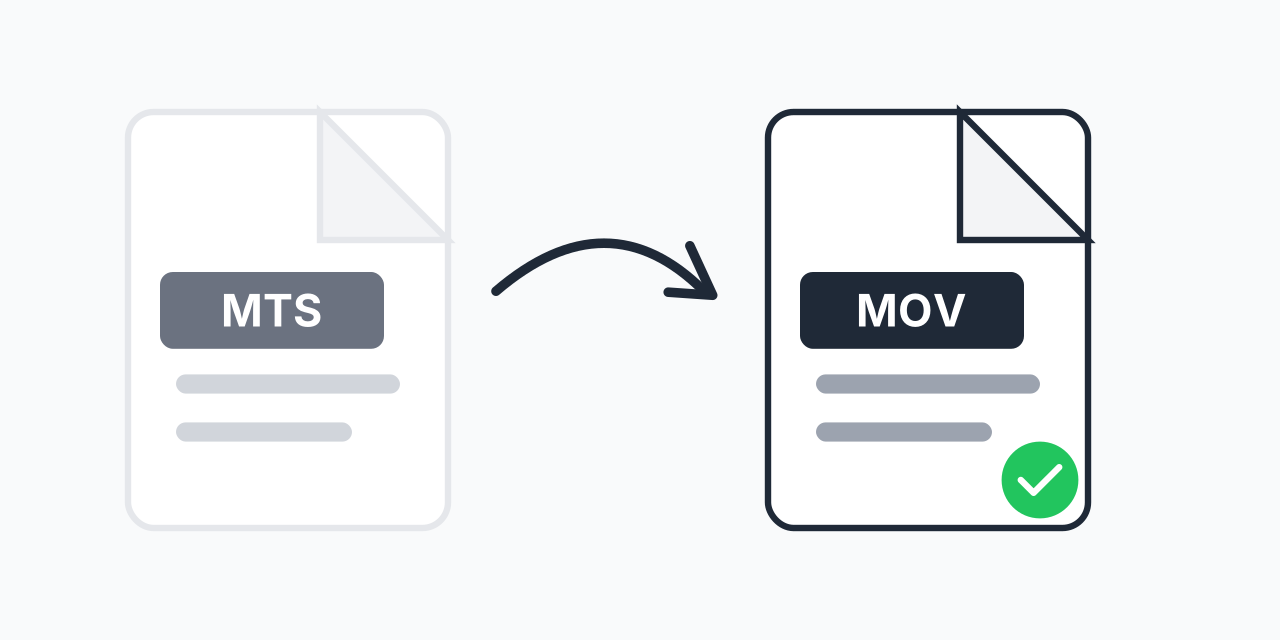
Camcorder Videos Not Working on Mac?
You recorded important footage with your Sony, Panasonic, or Canon camcorder. Now you want to edit it in Final Cut Pro or iMovie, but your Mac struggles with the MTS files. The video plays choppy, won't import, or gives codec errors.
MTS is the AVCHD format camcorders use to record high-definition video. While technically excellent, these files need significant processing power to handle. Converting to MOV format gives you smooth playback and native Mac compatibility without the headaches.
How to Convert MTS to MOV
- Upload your MTS file - Drag and drop from your camcorder's memory card or select from your computer
- Confirm MOV as output - MOV is pre-selected as the ideal format for Mac workflows
- Download your MOV file - Ready for immediate editing in any Mac video application
The entire conversion happens in your browser. No software to install, no accounts to create. Upload, convert, done.
Why MTS Files Are Difficult
AVCHD (Advanced Video Coding High Definition) was designed for camcorders in the late 2000s. The format prioritizes recording efficiency over editing flexibility:
- CPU intensive - MTS requires significant processing power to decode smoothly
- Complex file structure - AVCHD uses a folder-based system that confuses some applications
- Limited software support - Many editors struggle with native AVCHD handling
- Timeline lag - Scrubbing through MTS footage causes stuttering and delays
In our testing, even modern Mac systems showed noticeable lag when editing raw MTS files. Converting to MOV eliminated these issues completely.
MOV: The Mac Video Standard
MOV was created by Apple specifically for QuickTime. This gives it inherent advantages on Mac systems:
- Native support - macOS handles MOV without additional codecs
- QuickTime optimized - Smooth playback in Apple's built-in player
- Final Cut Pro ready - Import directly without transcoding delays
- iMovie compatible - Works seamlessly with consumer editing software
- Efficient editing - Scrub and preview without rendering
Both MTS and MOV can use H.264 video compression. This means conversion preserves your original quality while gaining Mac compatibility.
Common MTS to MOV Scenarios
Wedding and Event Videography
You shot hours of wedding footage on a professional camcorder. Now you need to edit it into a polished video. Converting to MOV first makes the editing process dramatically smoother.
Family Archives
Years of birthday parties, holidays, and milestones recorded on your camcorder. You want to compile highlights into shareable videos on your Mac. MOV makes this project manageable.
YouTube Content
Creating content with a dedicated camcorder for better image quality. MOV streamlines your workflow from recording to final upload, especially if you edit in Final Cut Pro.
Business Presentations
Product demos or training videos recorded on company equipment. Converting to MOV ensures smooth playback across all Mac systems during meetings and presentations.
What About MP4 Instead?
Both MOV and MP4 work well for video editing. Here's when to choose each:
- MOV - Best for Mac-focused workflows, Final Cut Pro, iMovie, QuickTime playback
- MP4 - Better for cross-platform sharing, web uploads, Windows compatibility
If your videos will primarily be edited and viewed on Mac, MOV is the natural choice. If you need to share with Windows users or upload to various platforms, consider converting to MP4 instead.
Works on Any Device
Our converter runs directly in your browser:
- macOS, Windows, Linux, ChromeOS
- Chrome, Safari, Firefox, Edge
- Desktop and laptop computers
Convert MTS files from any computer, even if you're away from your main editing setup. No software downloads required.